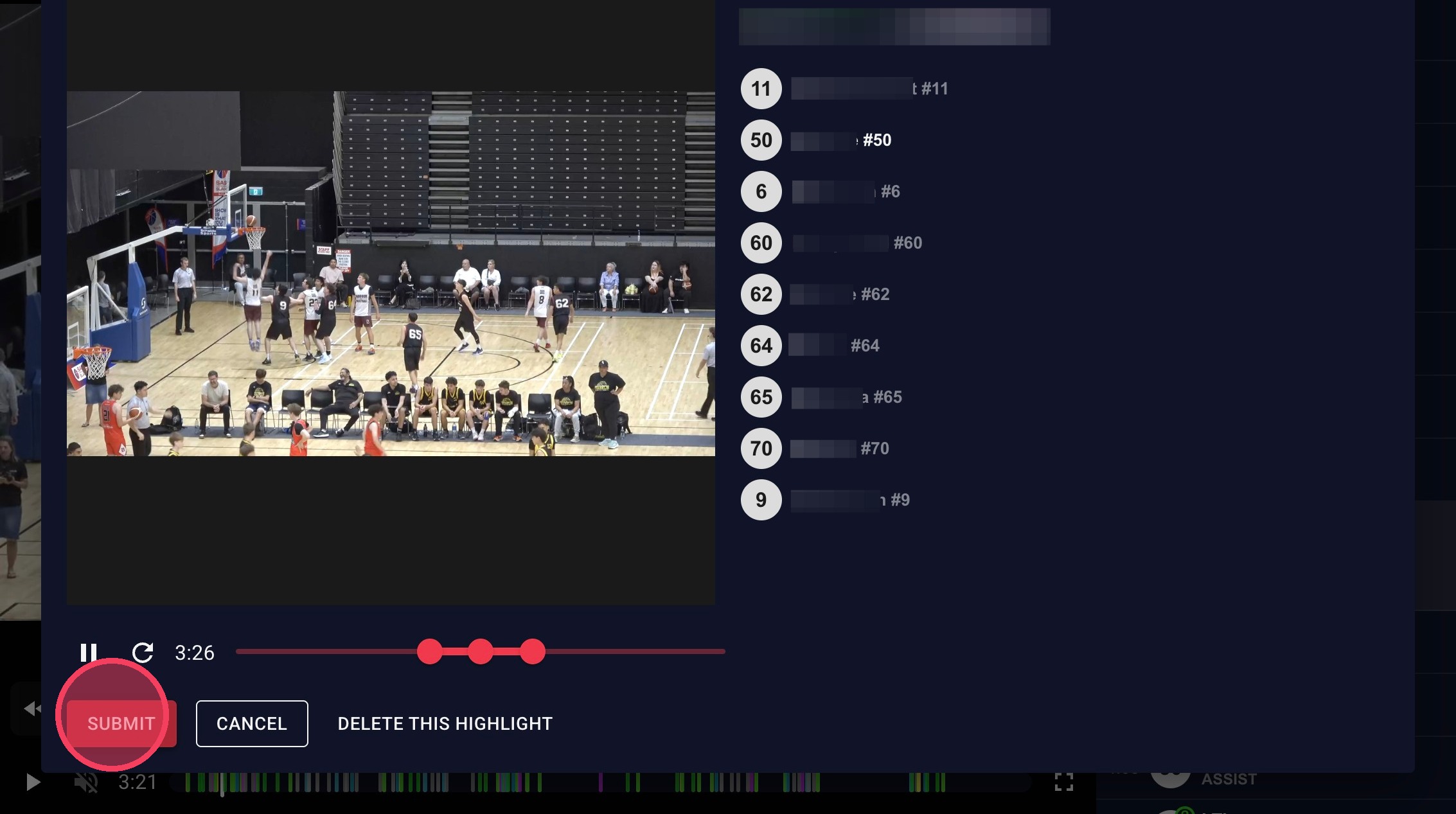
How to Adjust the Timing of a Highlight
Your highlights are created by the scorebench during the game, when a point is scored they enter it into the scoring app and then that information is matched with the game video to create highlights. Scorebench volunteers may not always get the timing quite right, which is why anyone can edit the timing and length of their highlights in our platform.
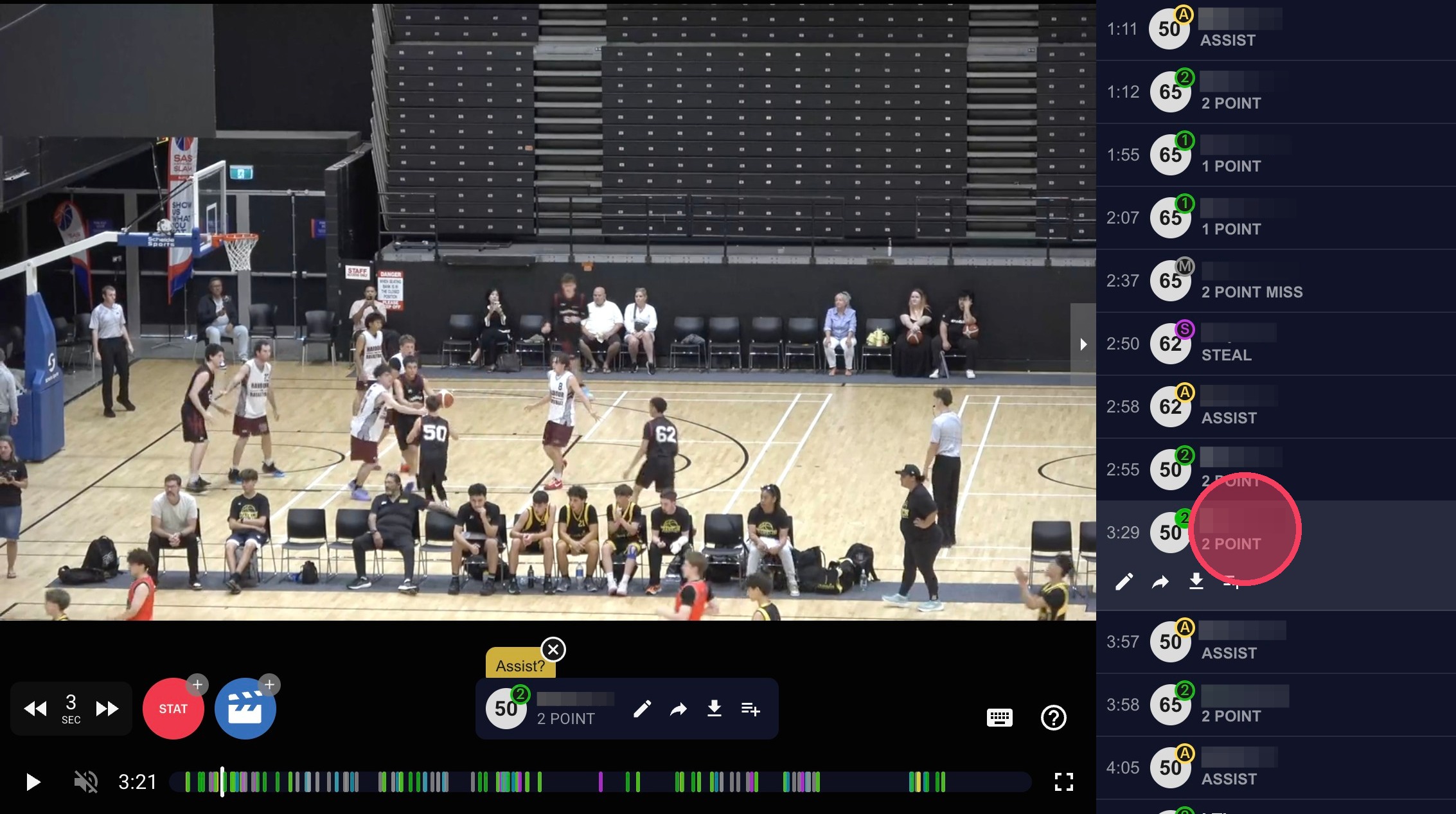
Click on the highlight you wish to edit in the right menu to jump to it in the video timeline.
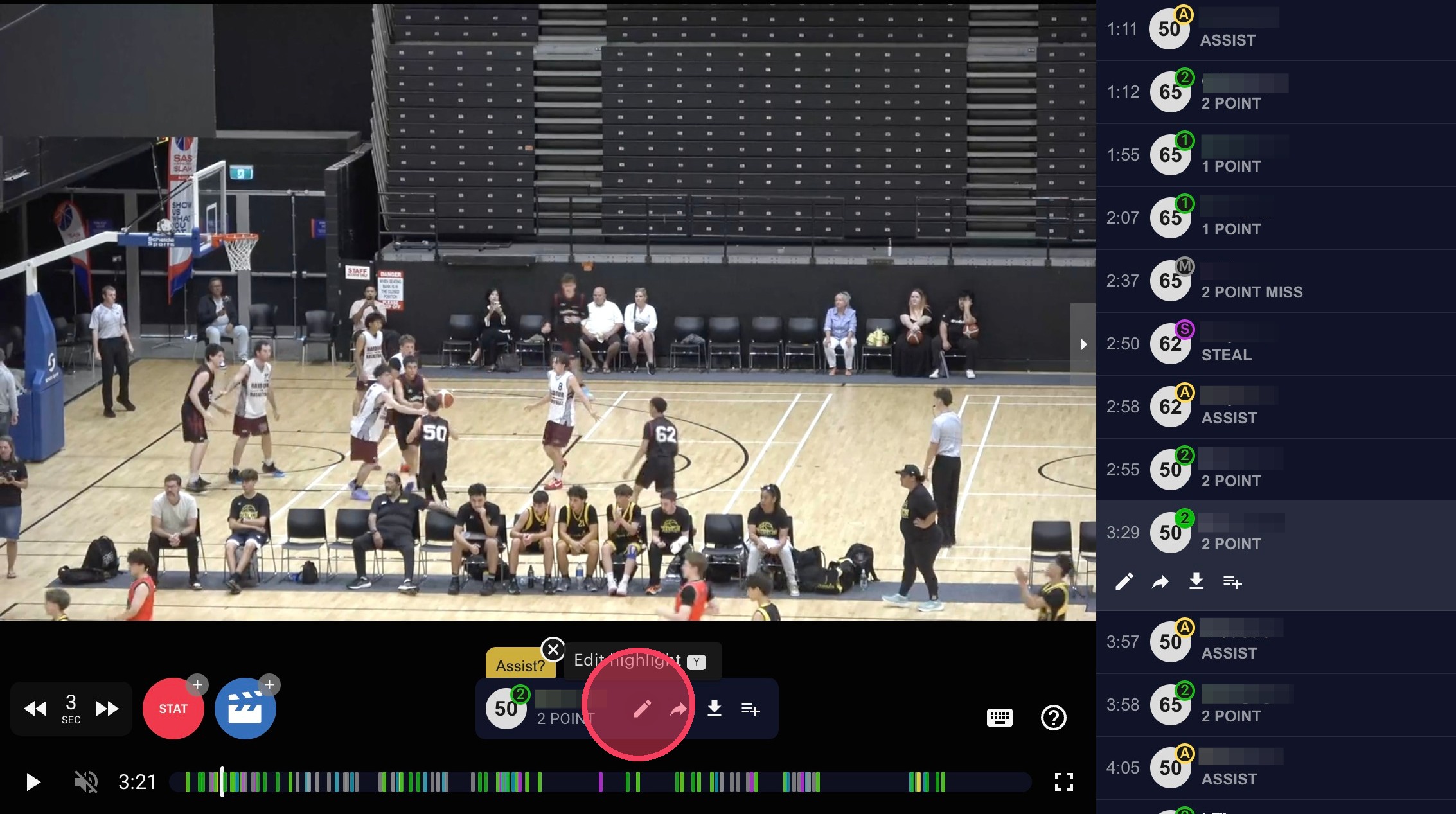
From the pop-up in the video timeline click 'Edit highlight'.
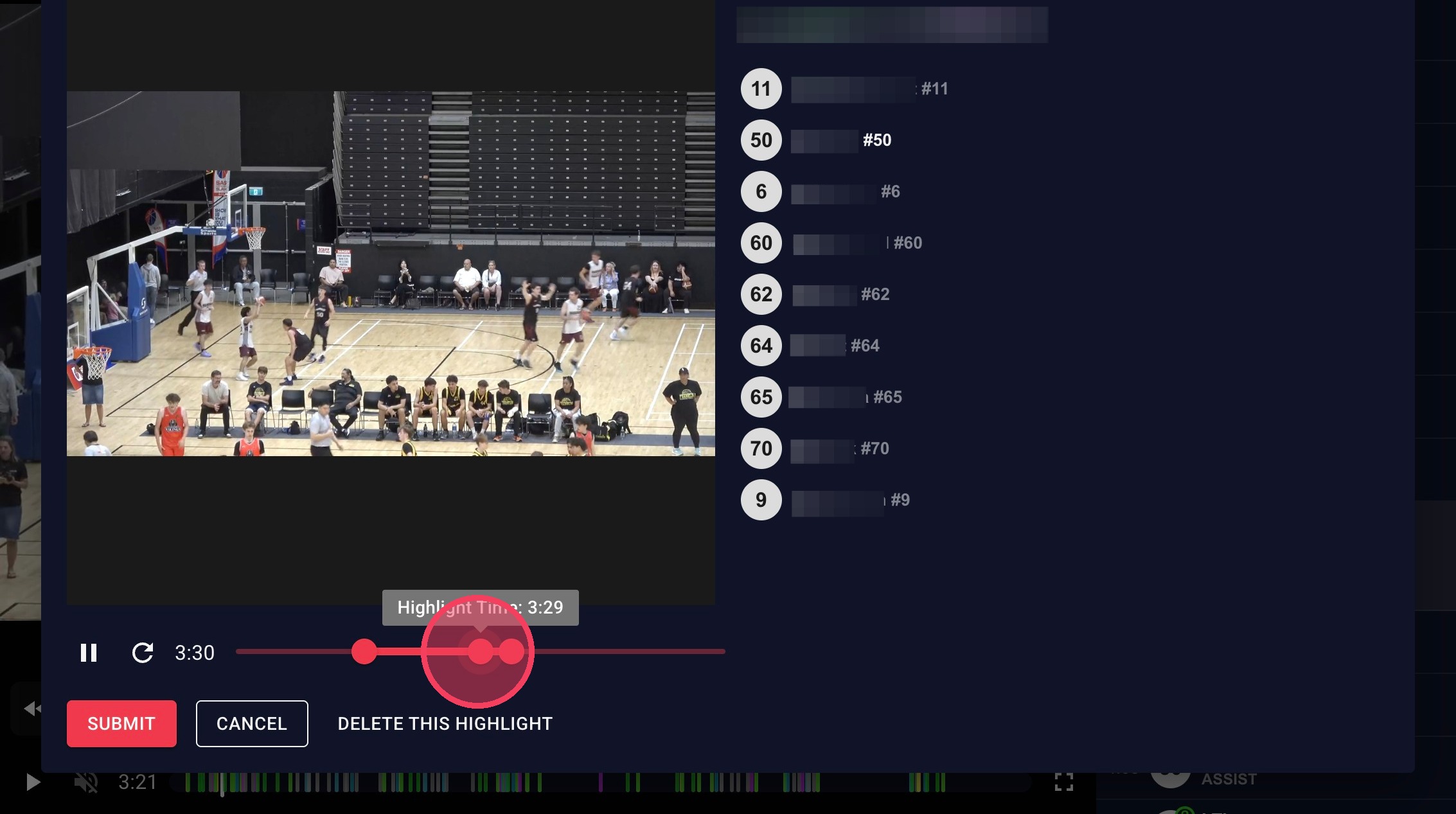
In the Edit pop-up select and drag the markers to adjust the clips start, end, and highlight time.
Click "Submit" to save your edits. If the highlight is not in the available video for this clip, you will need to delete the highlight then add the point in again at the right time in the video. This will not impact any official scores or records.