How to create a Clip
Use clips to save key moments from a full game video. Clips are saved to your own timeline and can be edited, shared, downloaded or added to a playlist. Clips cannot be seen by other players including players in your own team.
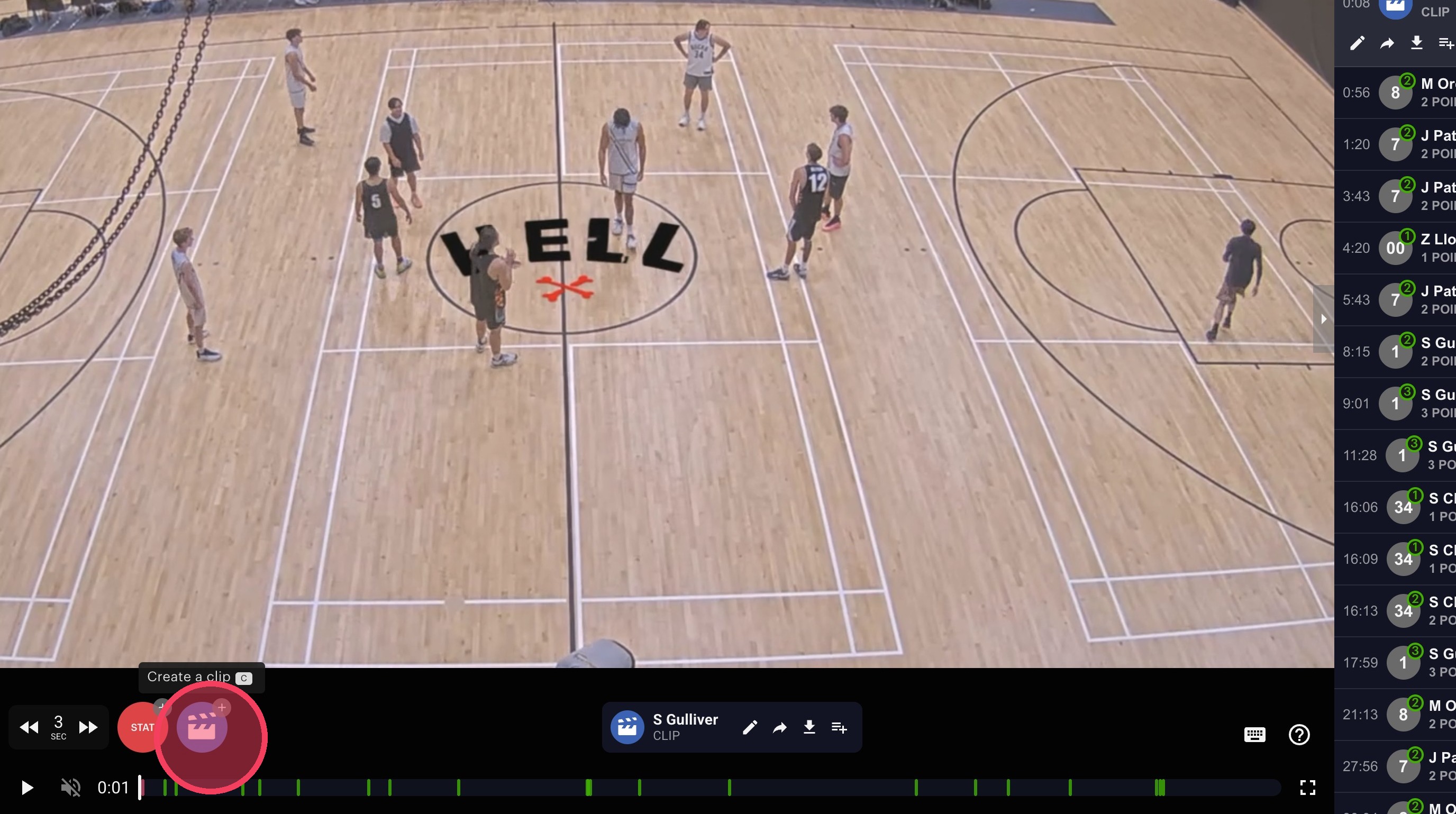
1. Create a clip by clicking the "clip" icon on the game video.
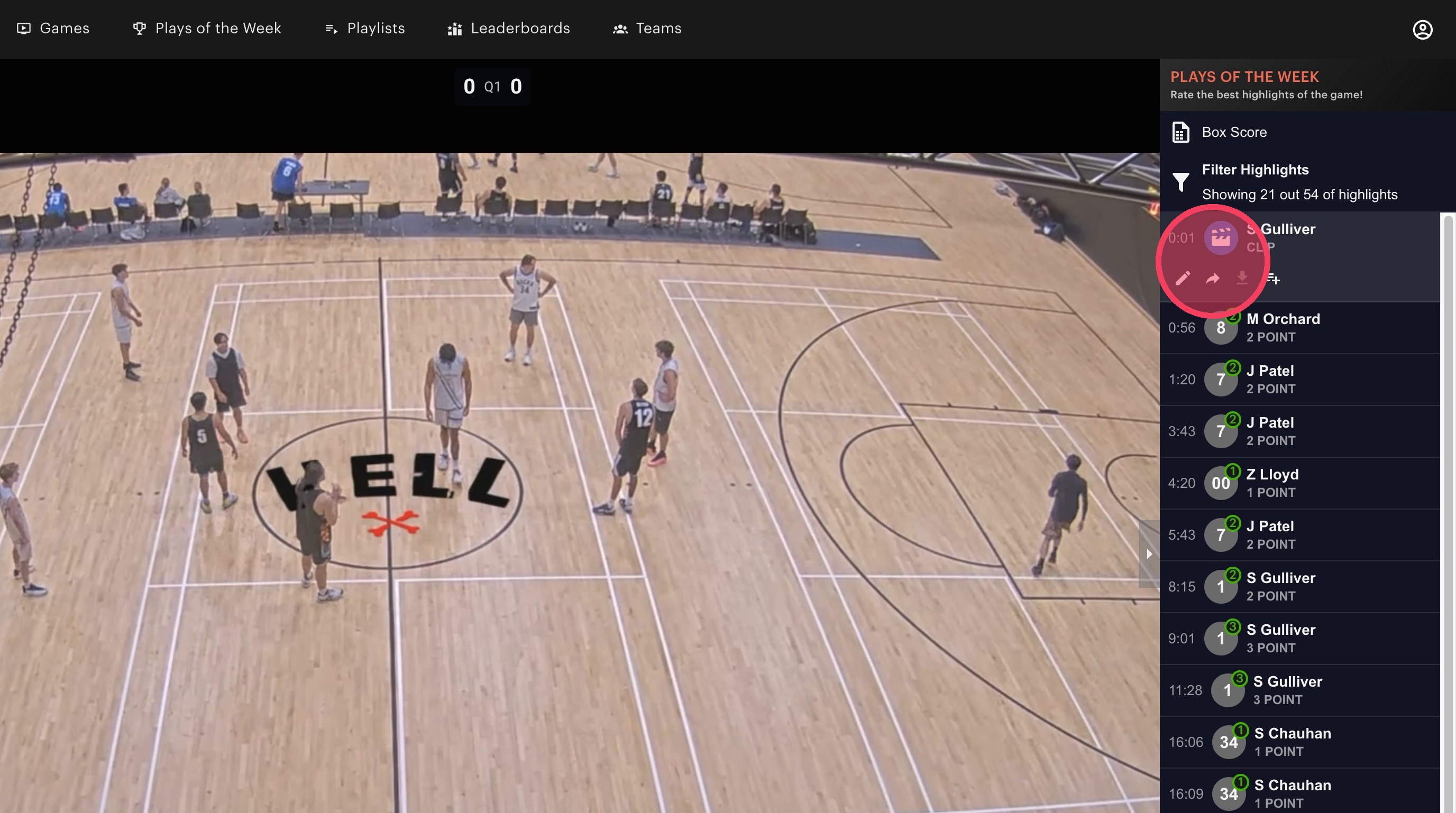
2. A clip will be automatically created on your timeline. Unlike stat tags, clips are private to you (unless shared) and won't appear on other users' timelines.
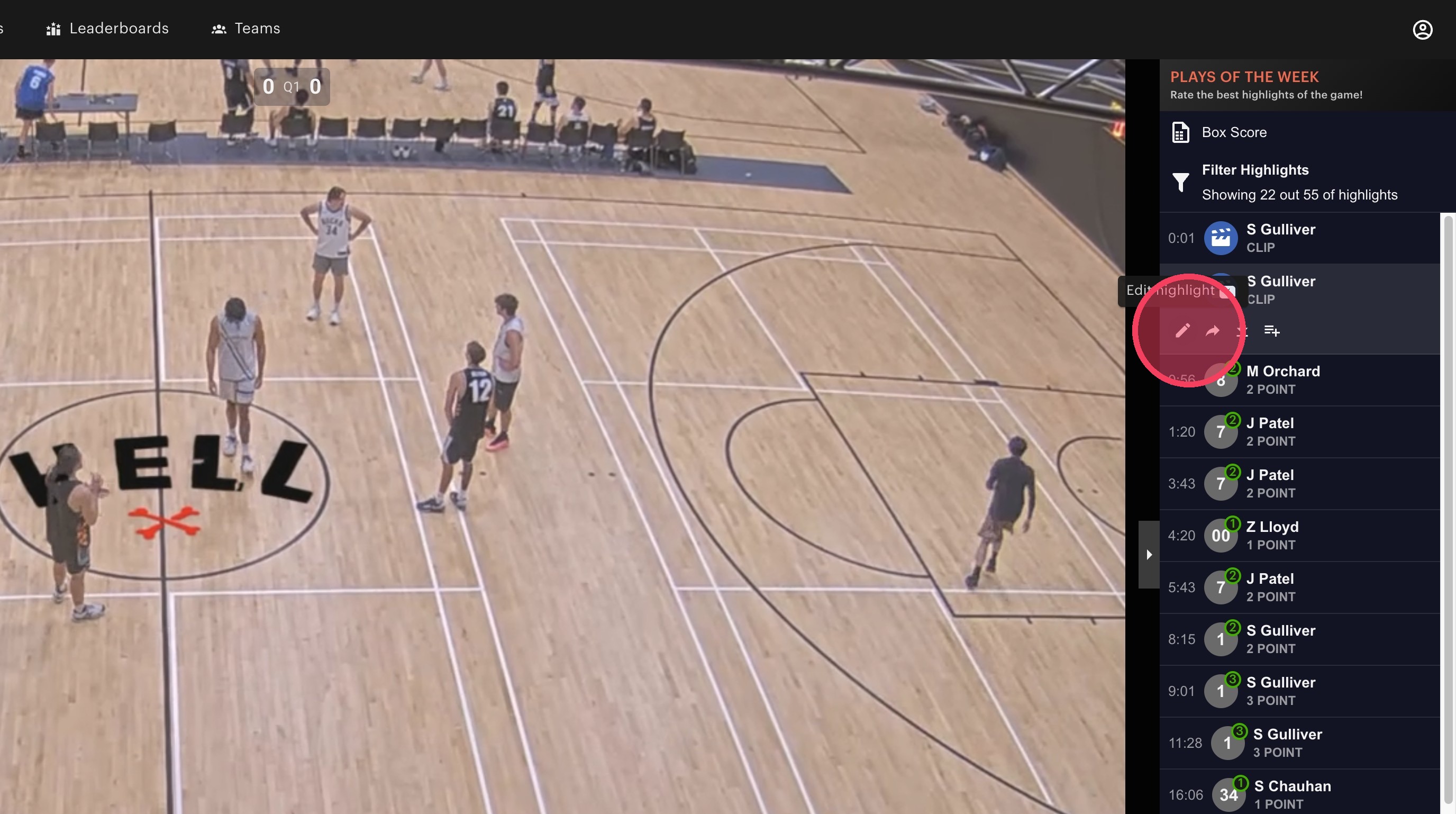
3. To adjust the clip length, find the clip on your timeline and click edit.
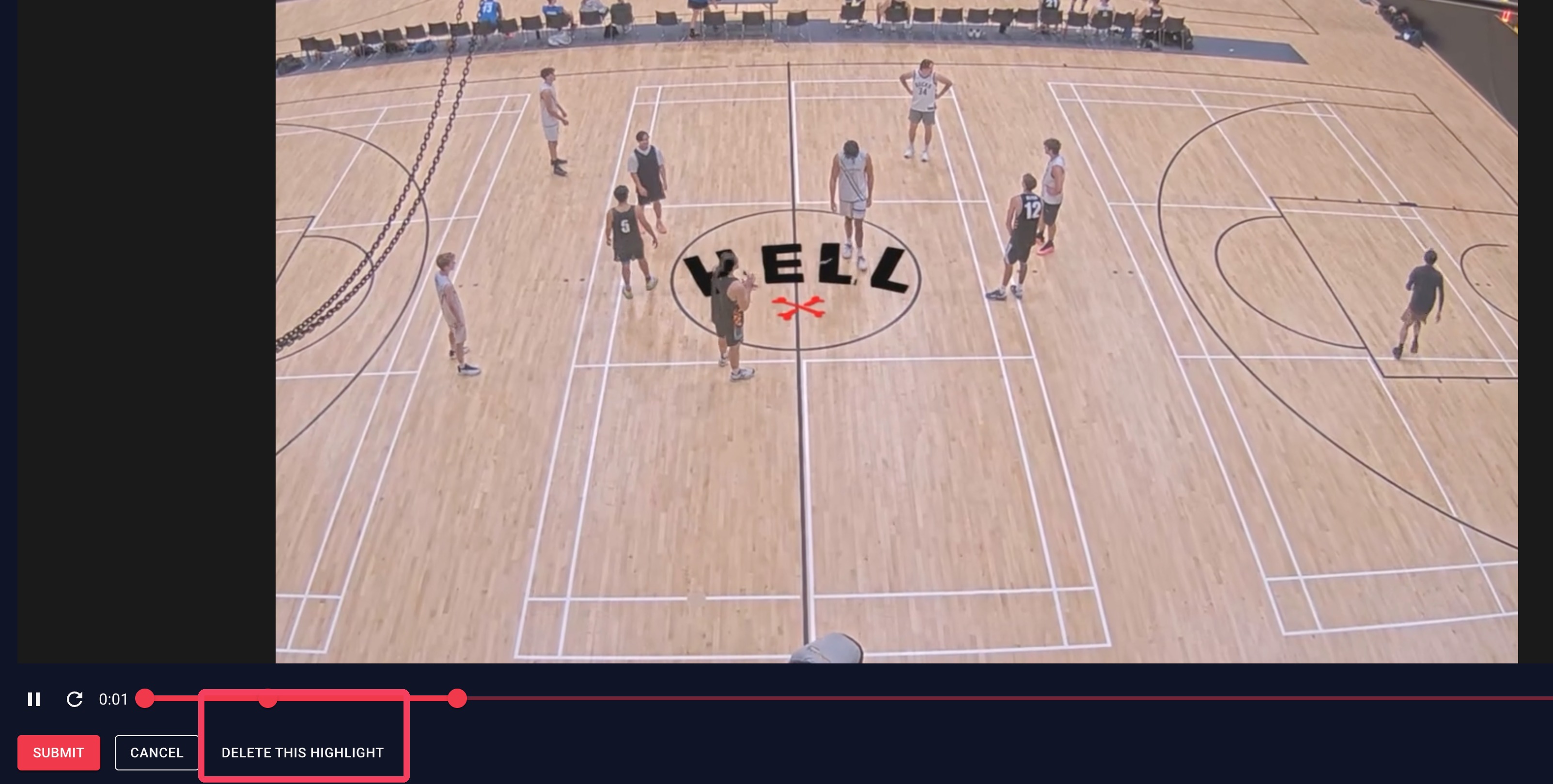
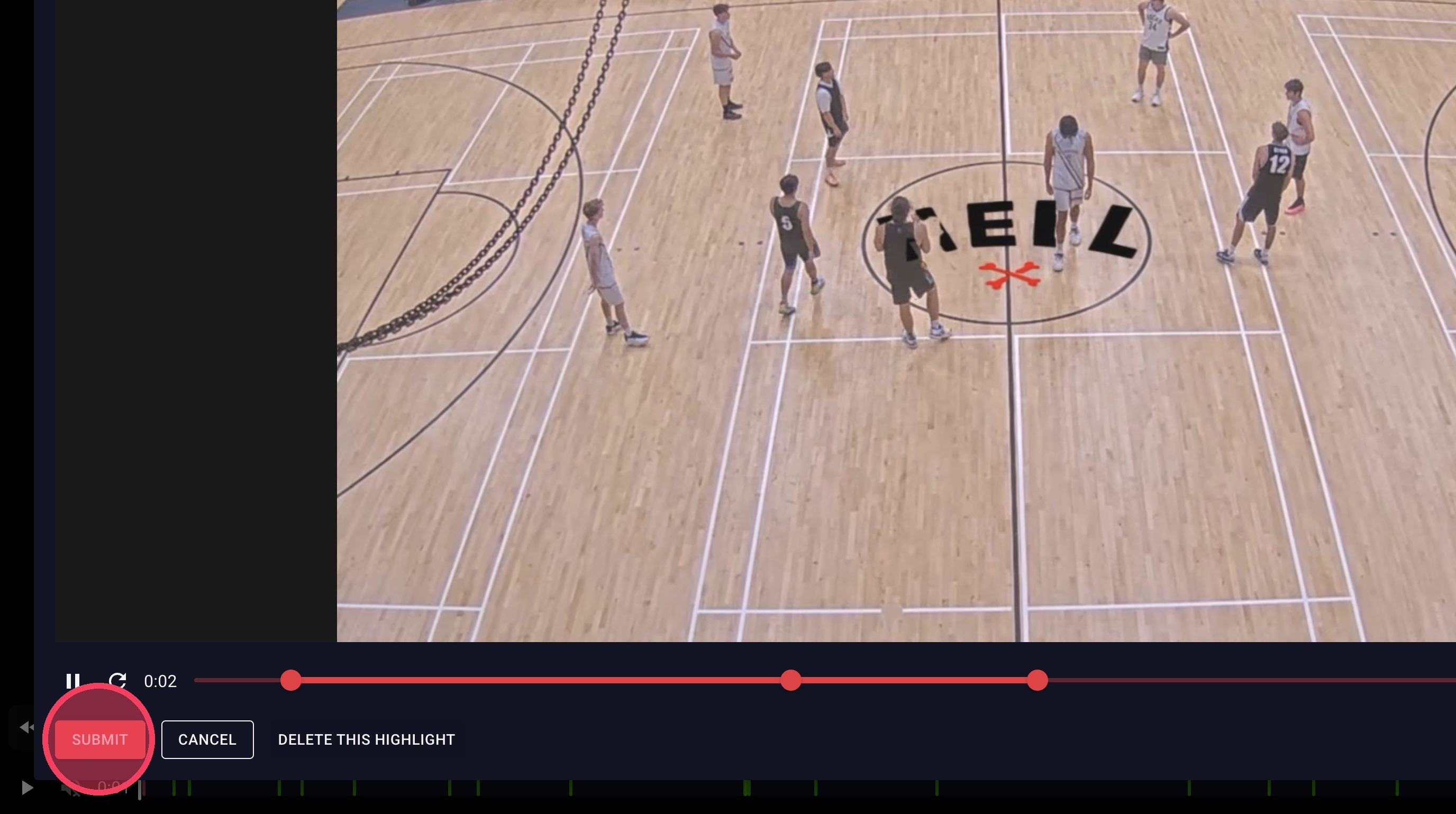
4. Drag the start and end points to adjust the clip length, then click submit
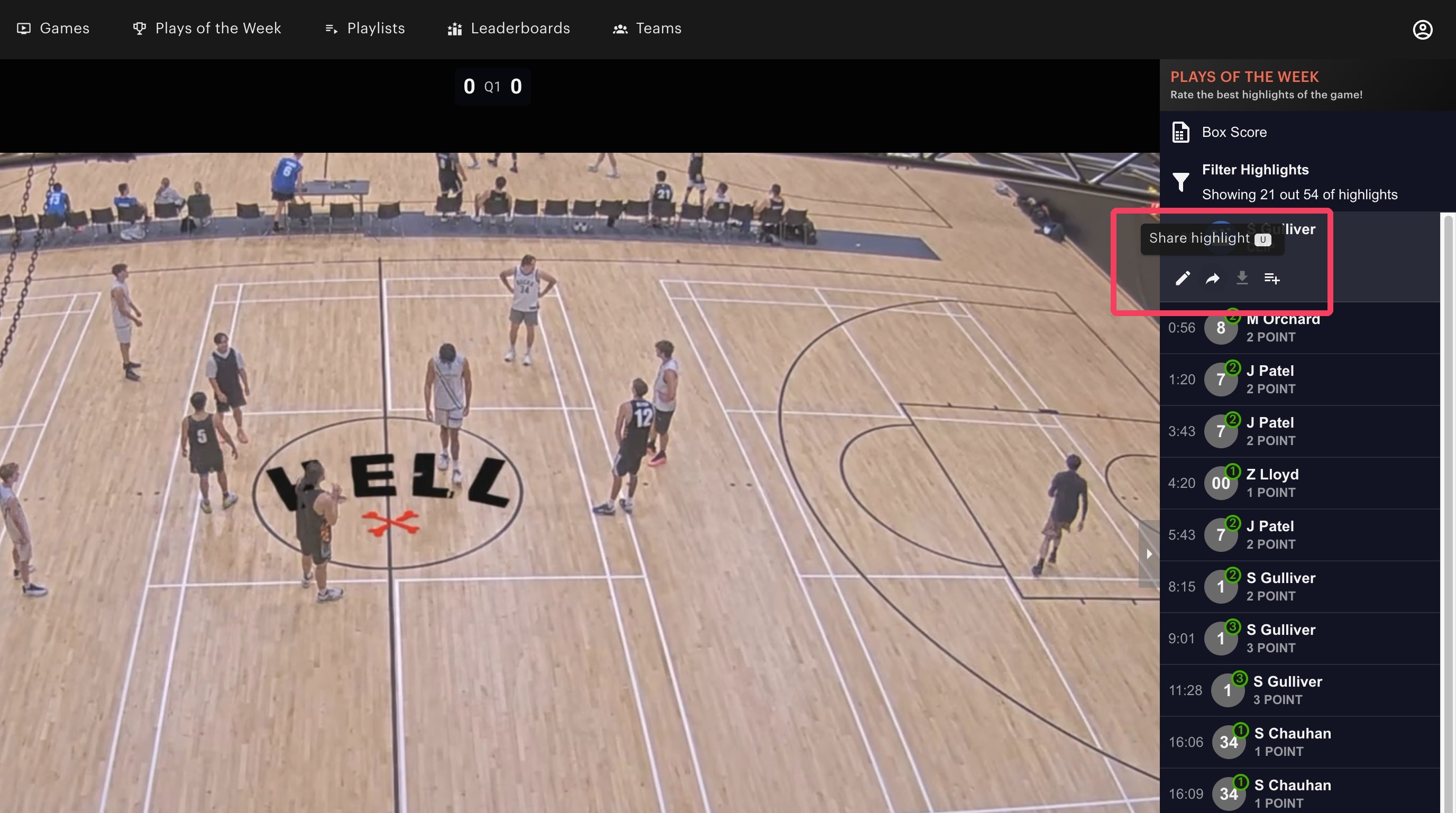
5. Once your clip is created, you can: Share the highlight, Download the clip, Add to playlist..
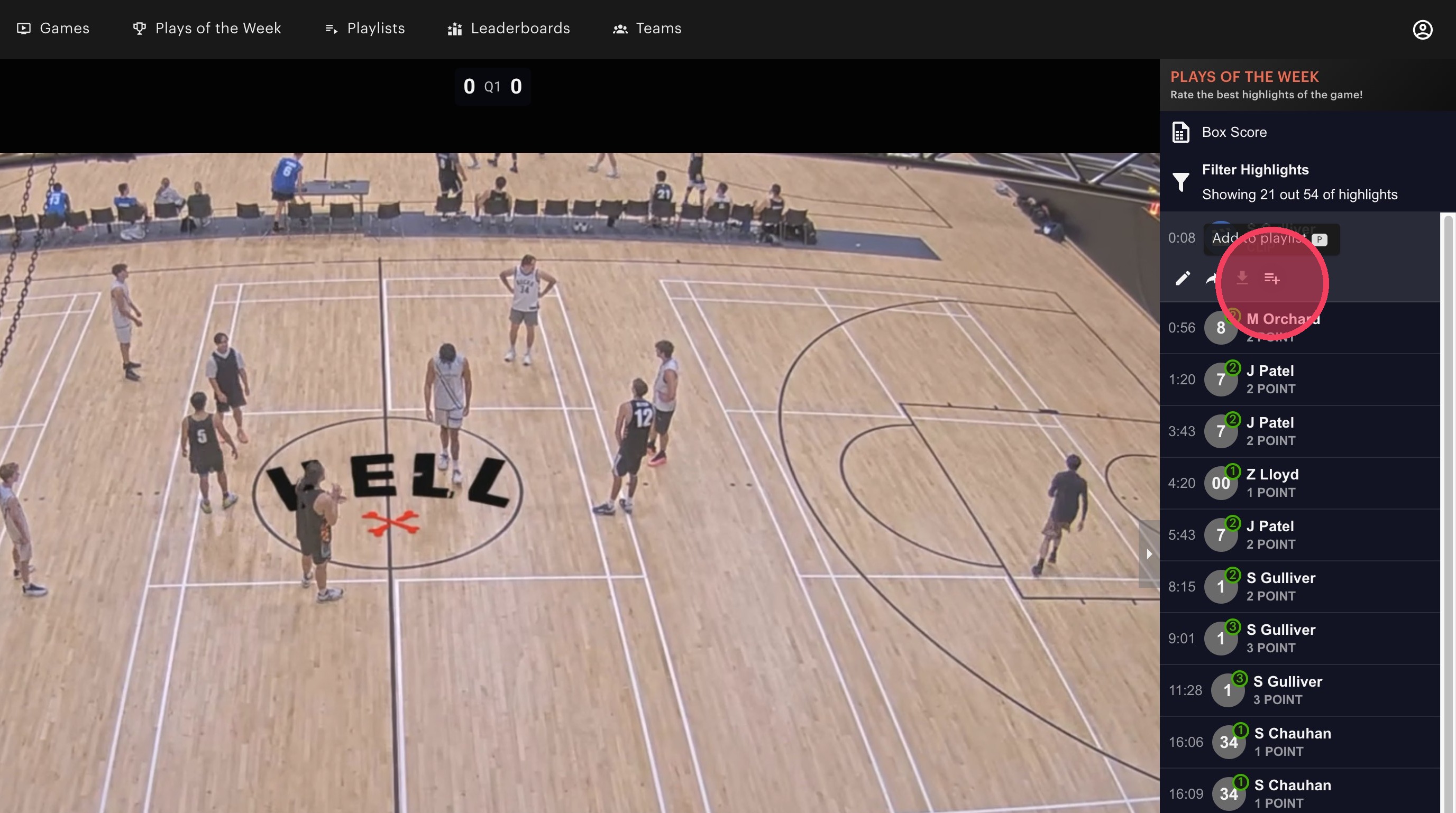
6. To add the clip to a playlist, click Add to playlist.
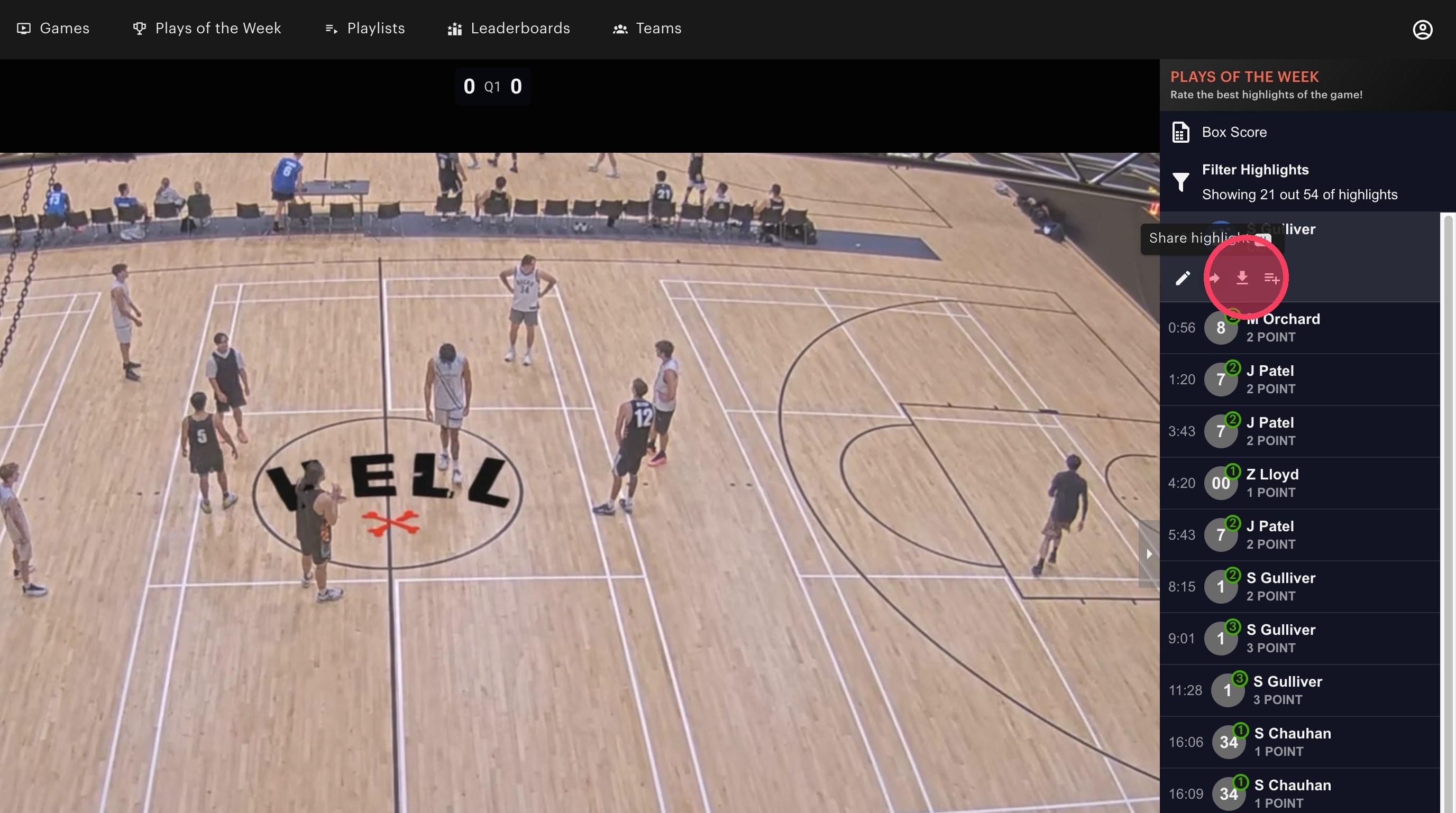
7. To share or download the clip, click Share Highlight.
8. To delete a clip, return to the clip edit screen and click "Delete This Highlight."