Playlists: Step-by-Step Guide for Coaches
Saving Game Highlights
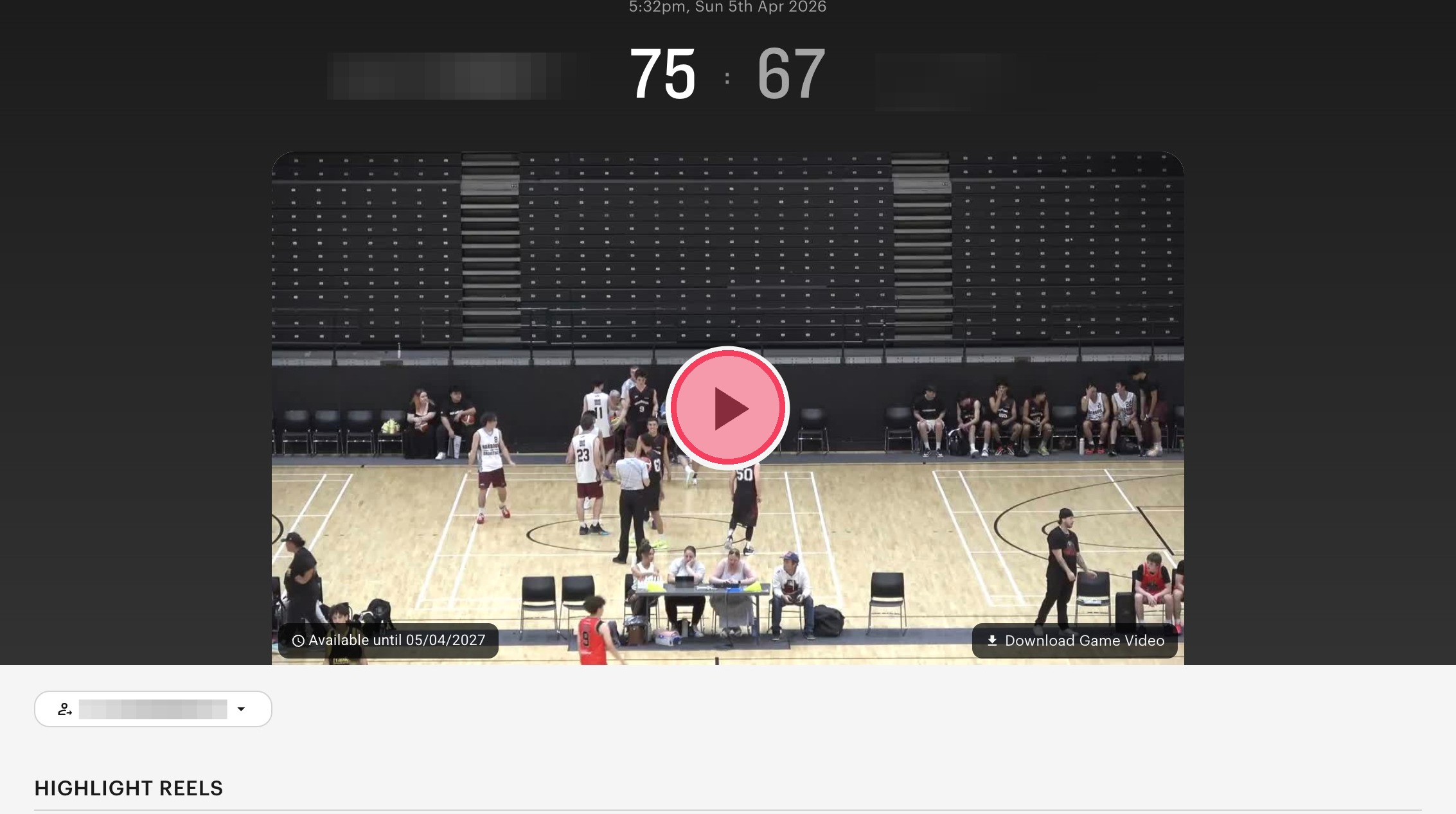
Start creating your first playlist by going into a game video.
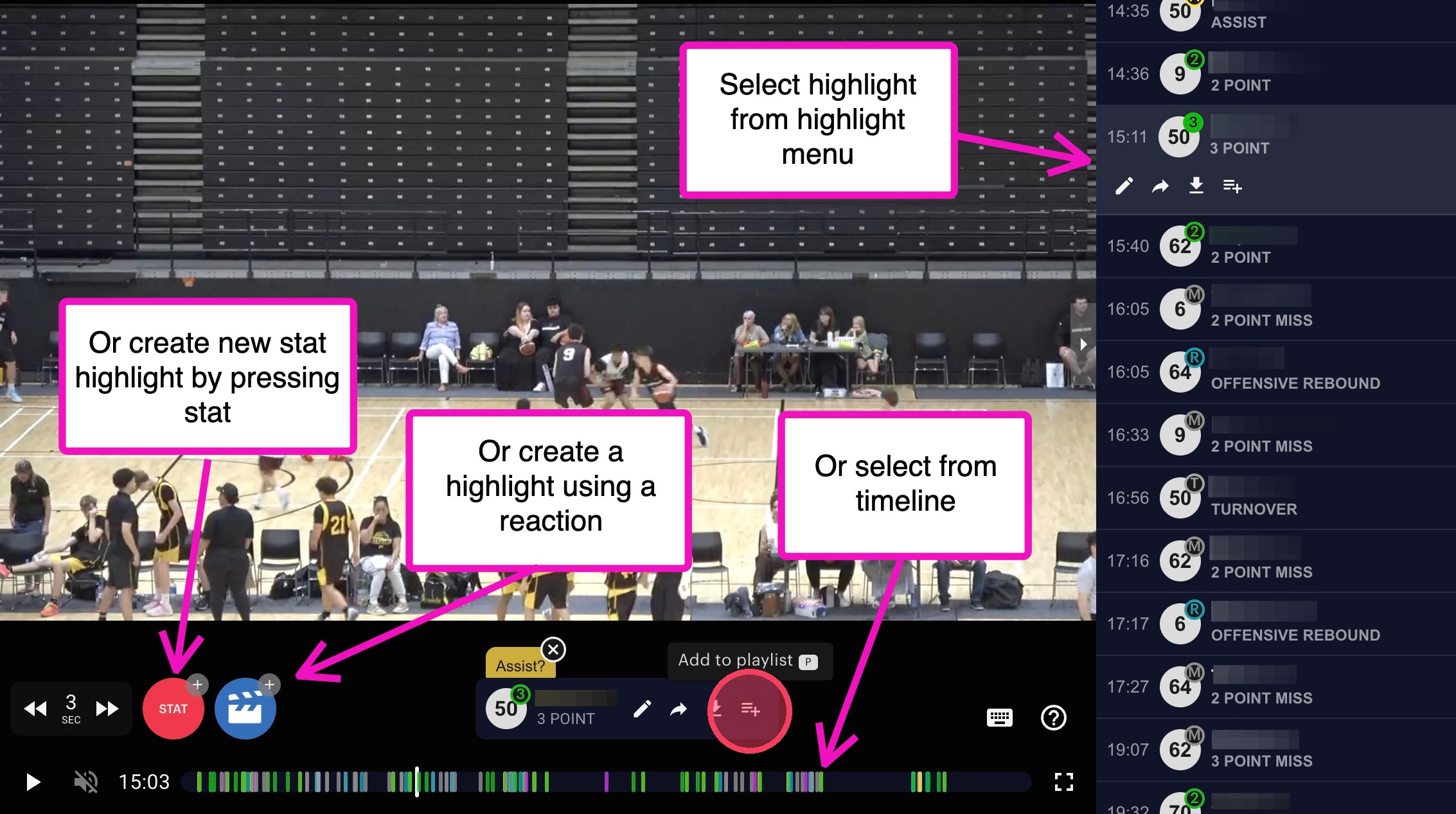
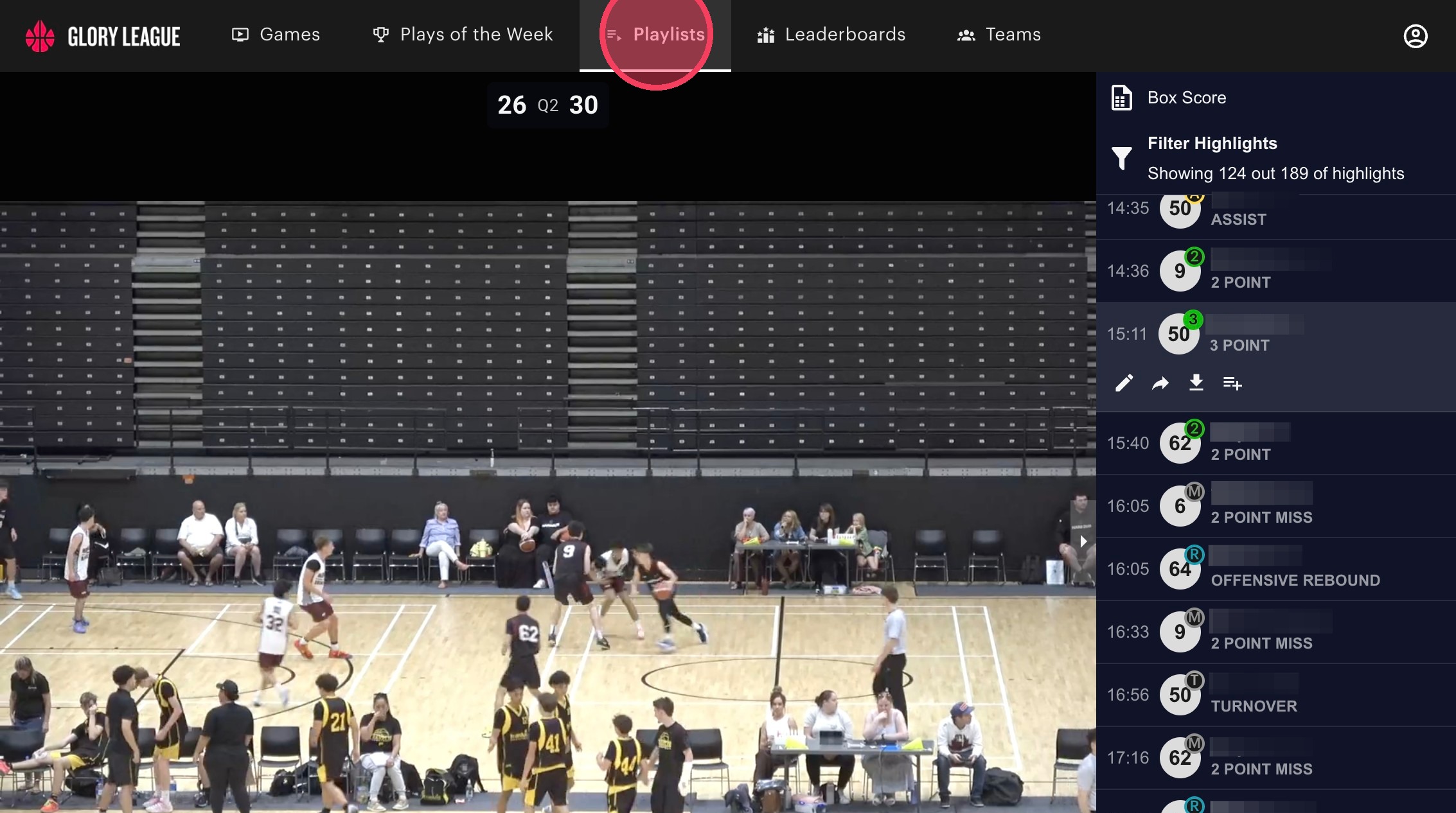
Find clips you want to add to the playlist from the side menu or timeline or by creating new clips with the stat or reaction button. Then click on the playlist icon to add to your playlist.
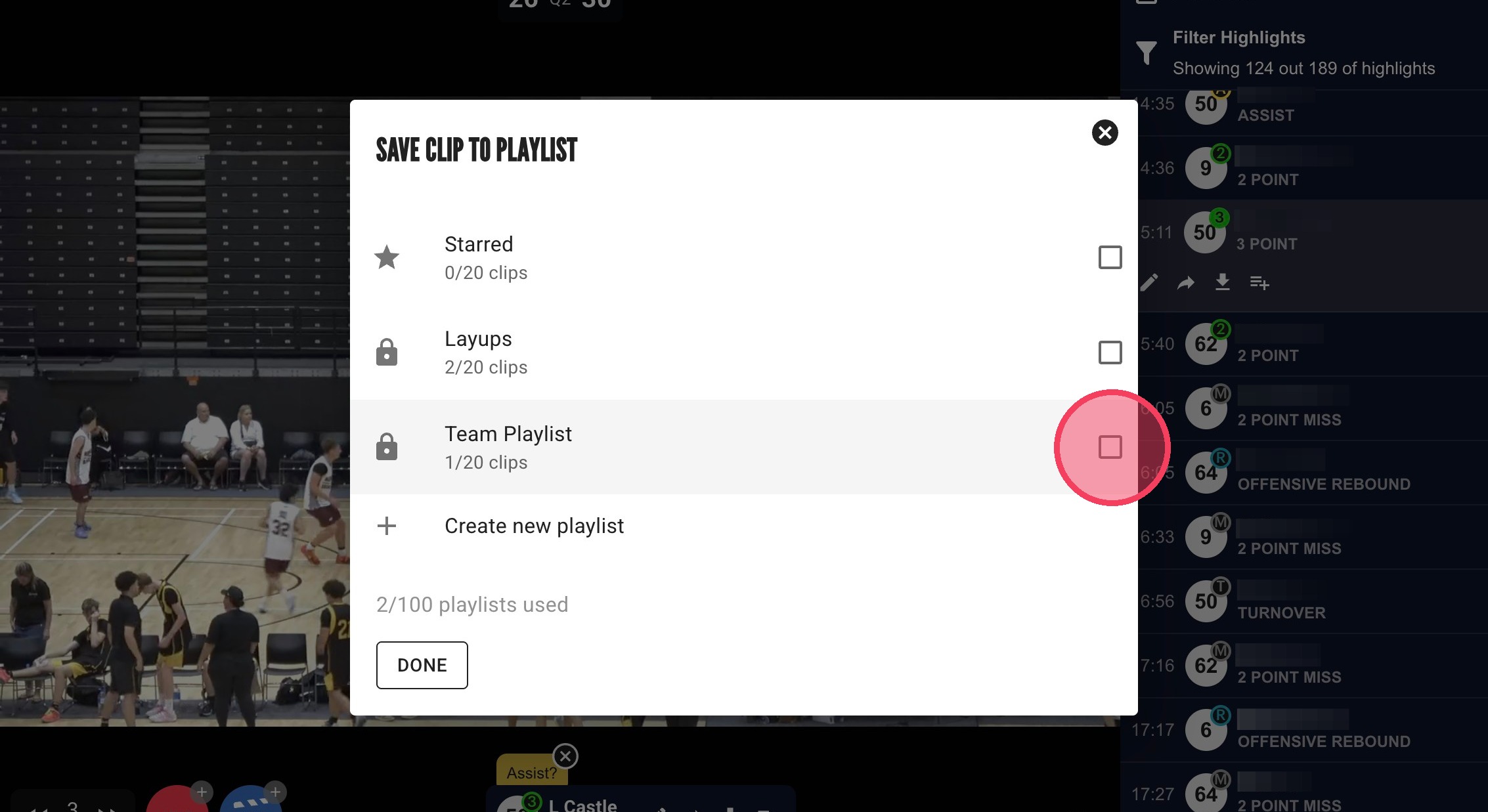
Check the playlist you want to add the clip to, or click "Create new playlist" to add to a new playlsit.
Adding Notes to Clips
When you've finished adding clips, click "Playlists" in the top menu to see your playlist.
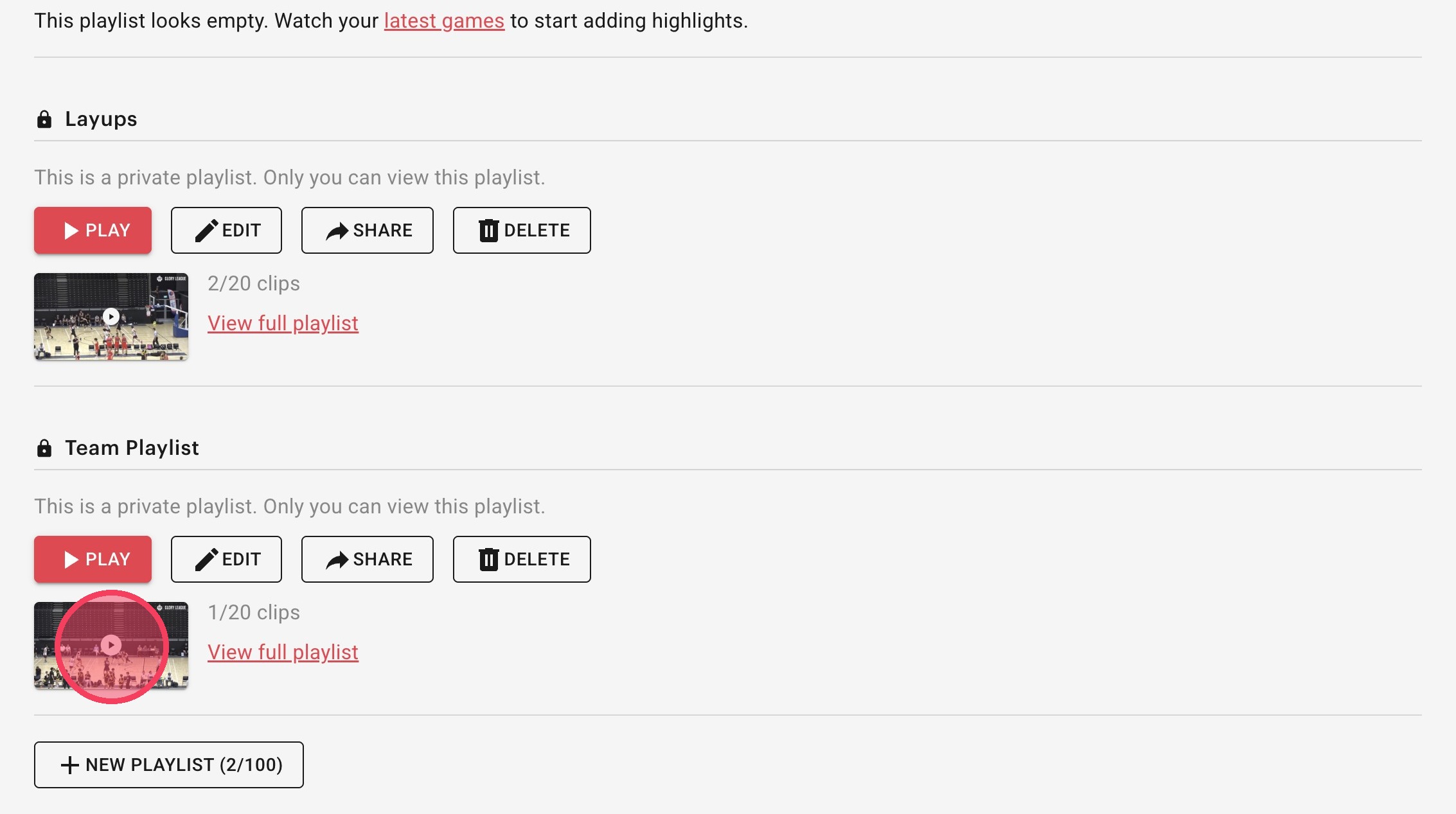
Click the video image to go straight into playlist.
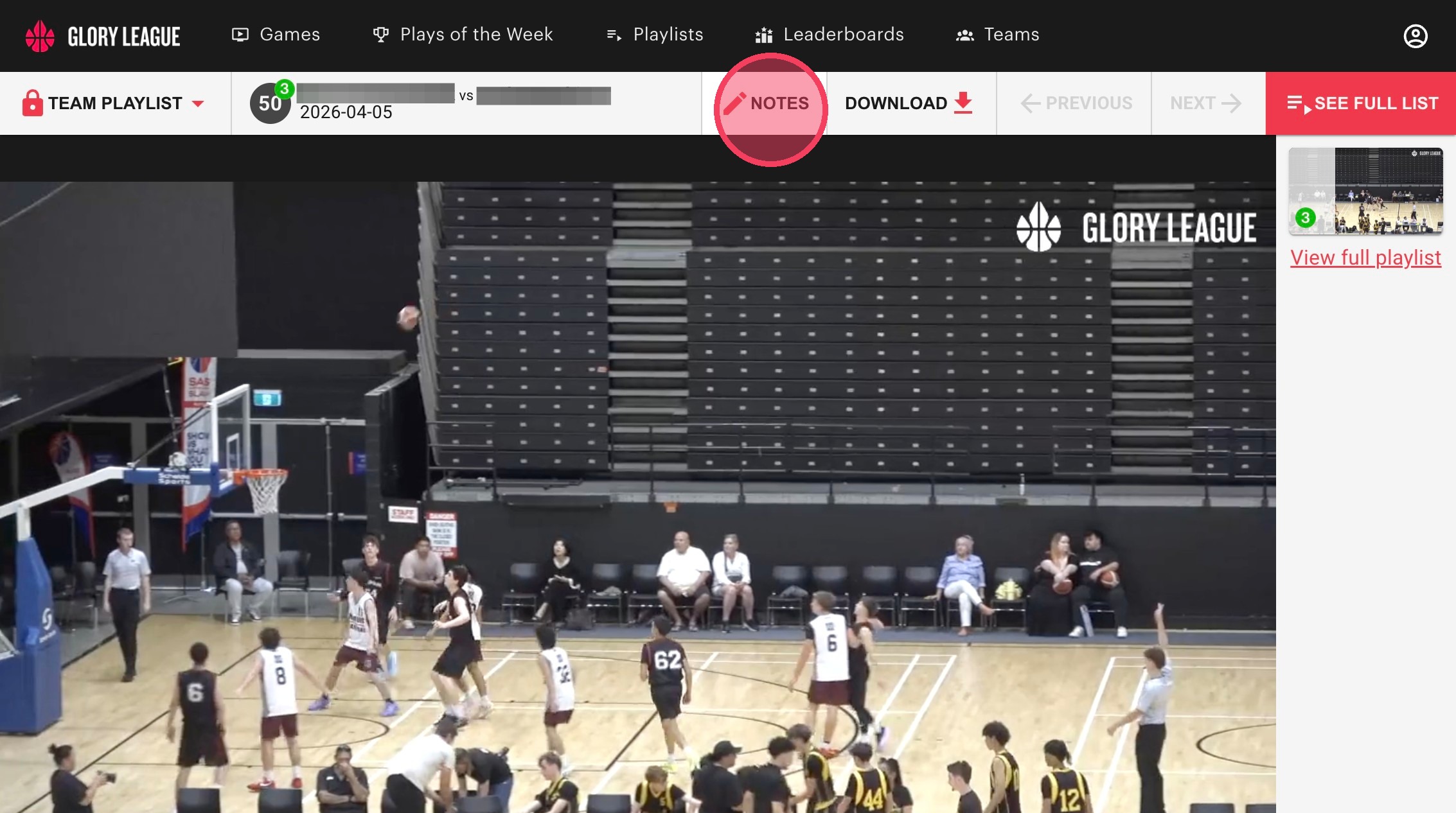
Click "Notes" to write notes to your players, only you, the owner of the playlist can write notes or edit the playlist, but anyone you share the playlist with will be able to see what you have written.
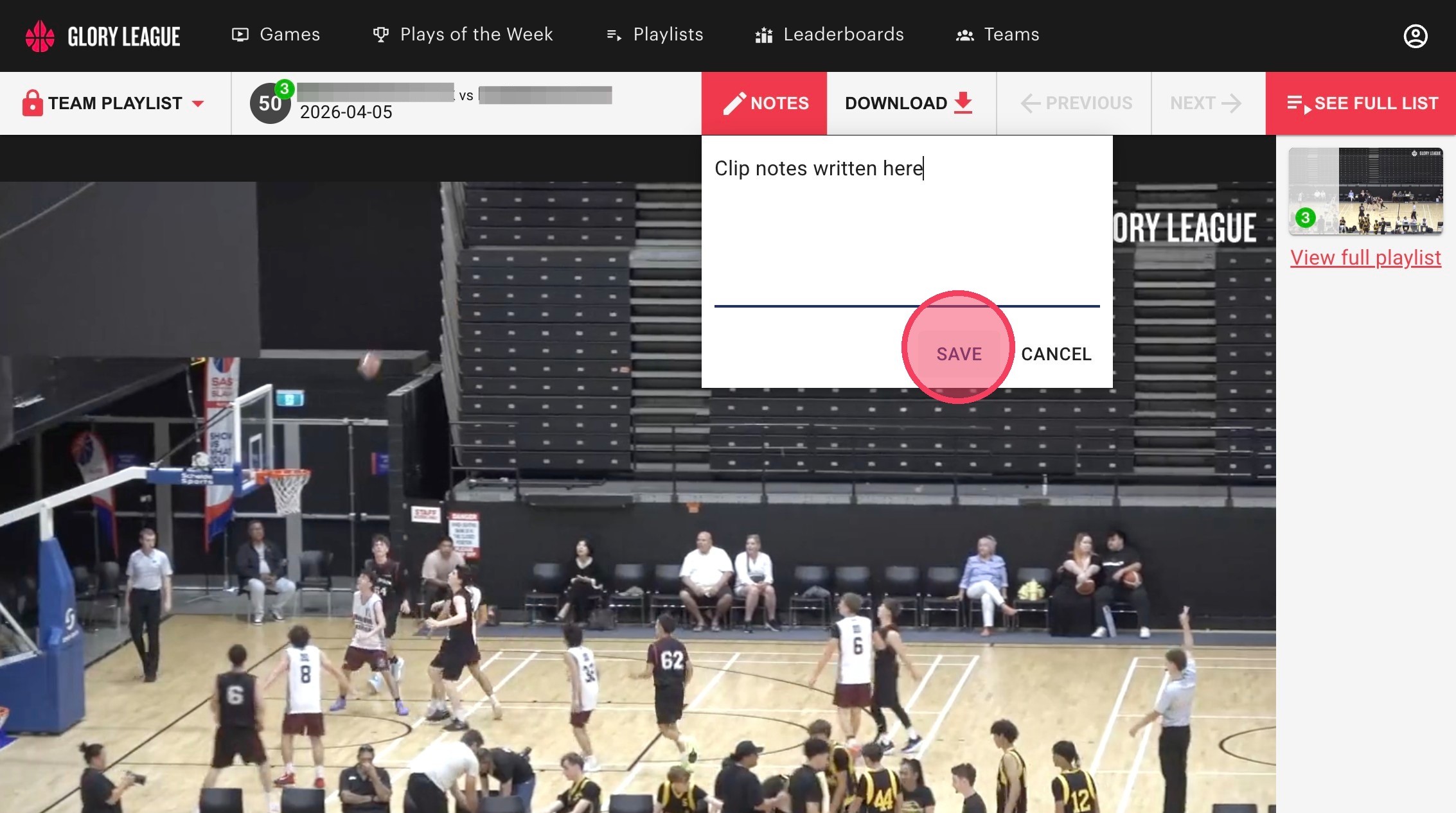
Click "Save".
View Clips in Full Screen
Click "See full list".
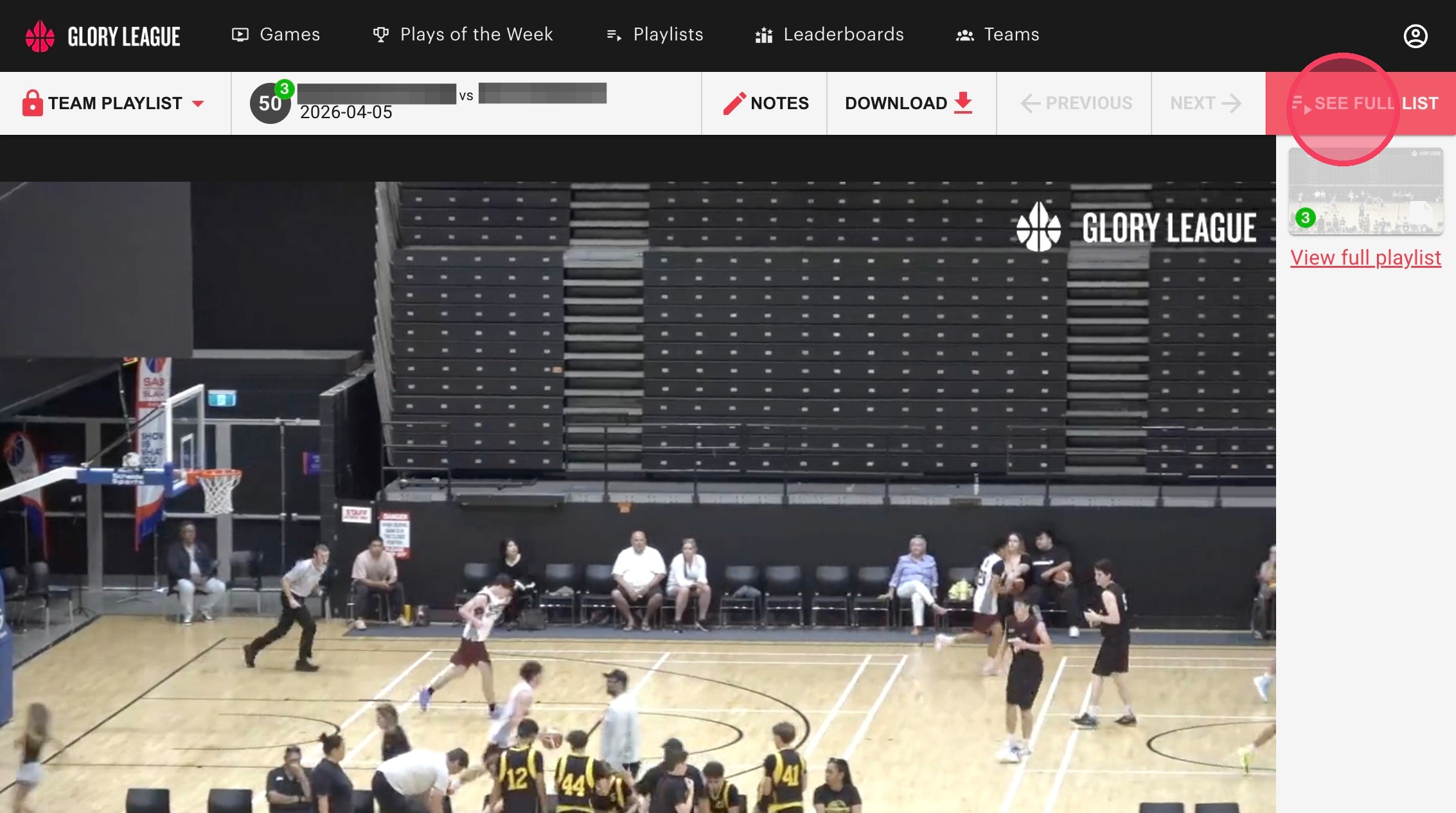
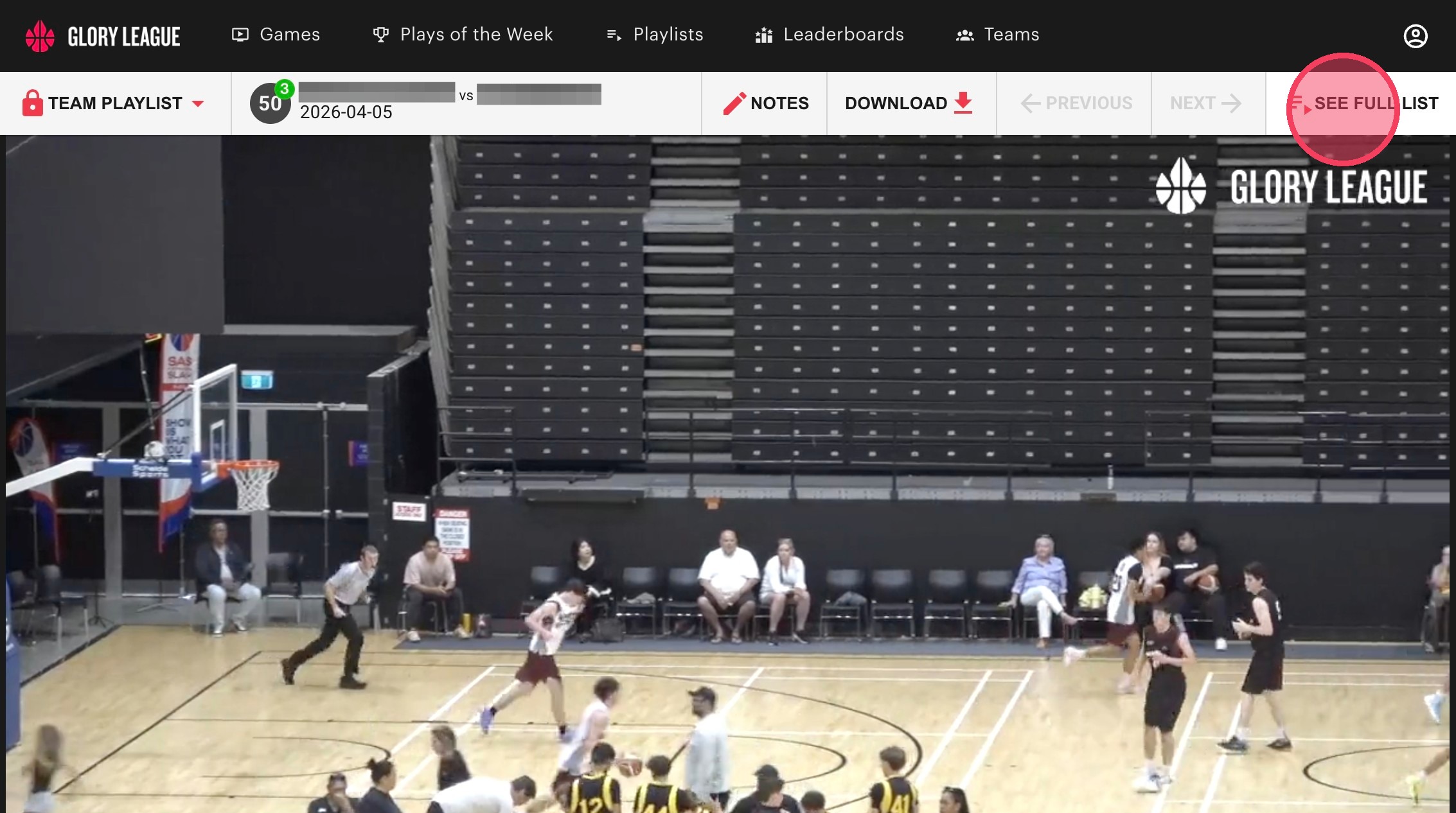
Switch between fullscreen and having the list of clips by pressing the "See Full List" button.
Organising Clips
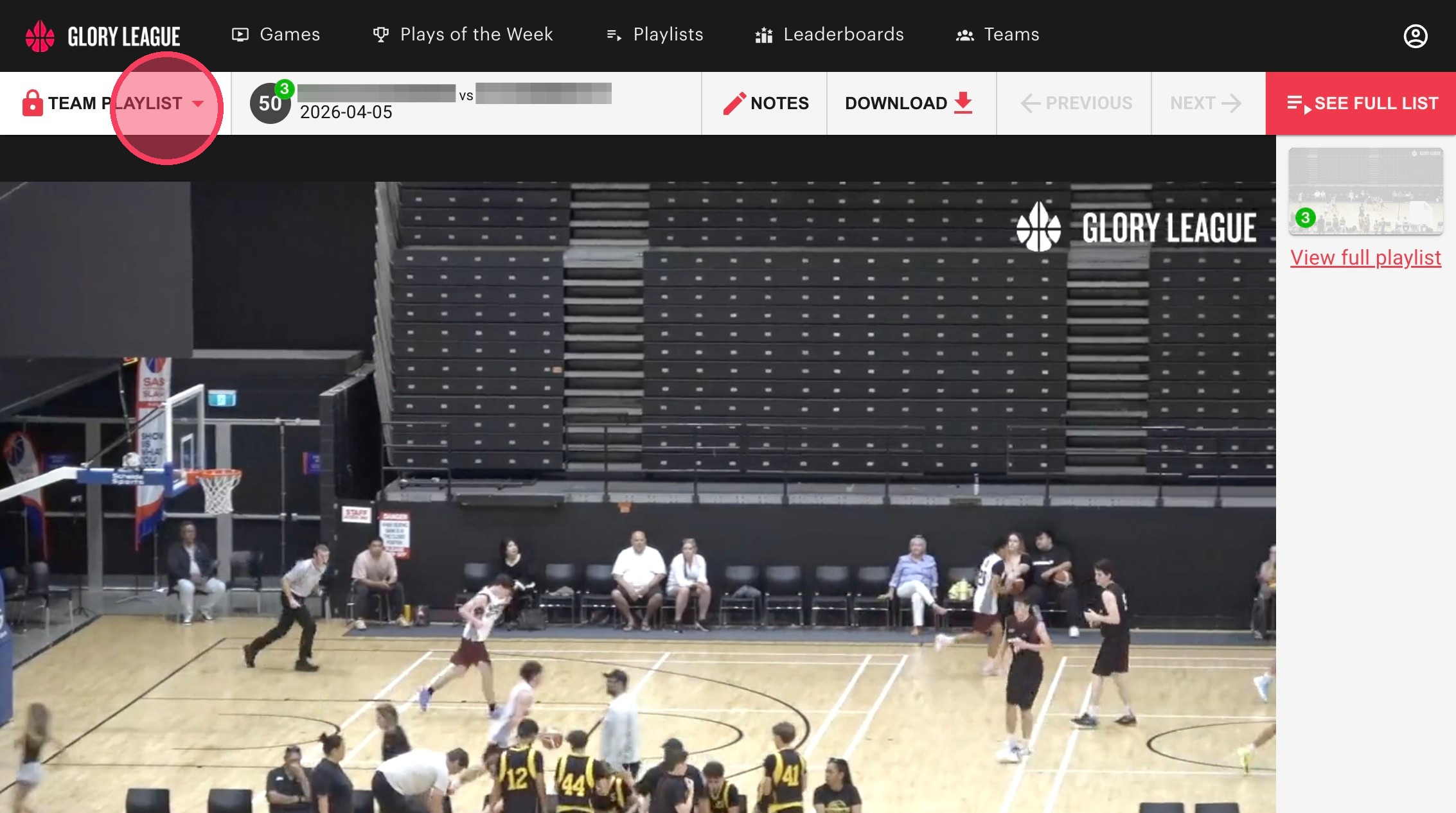
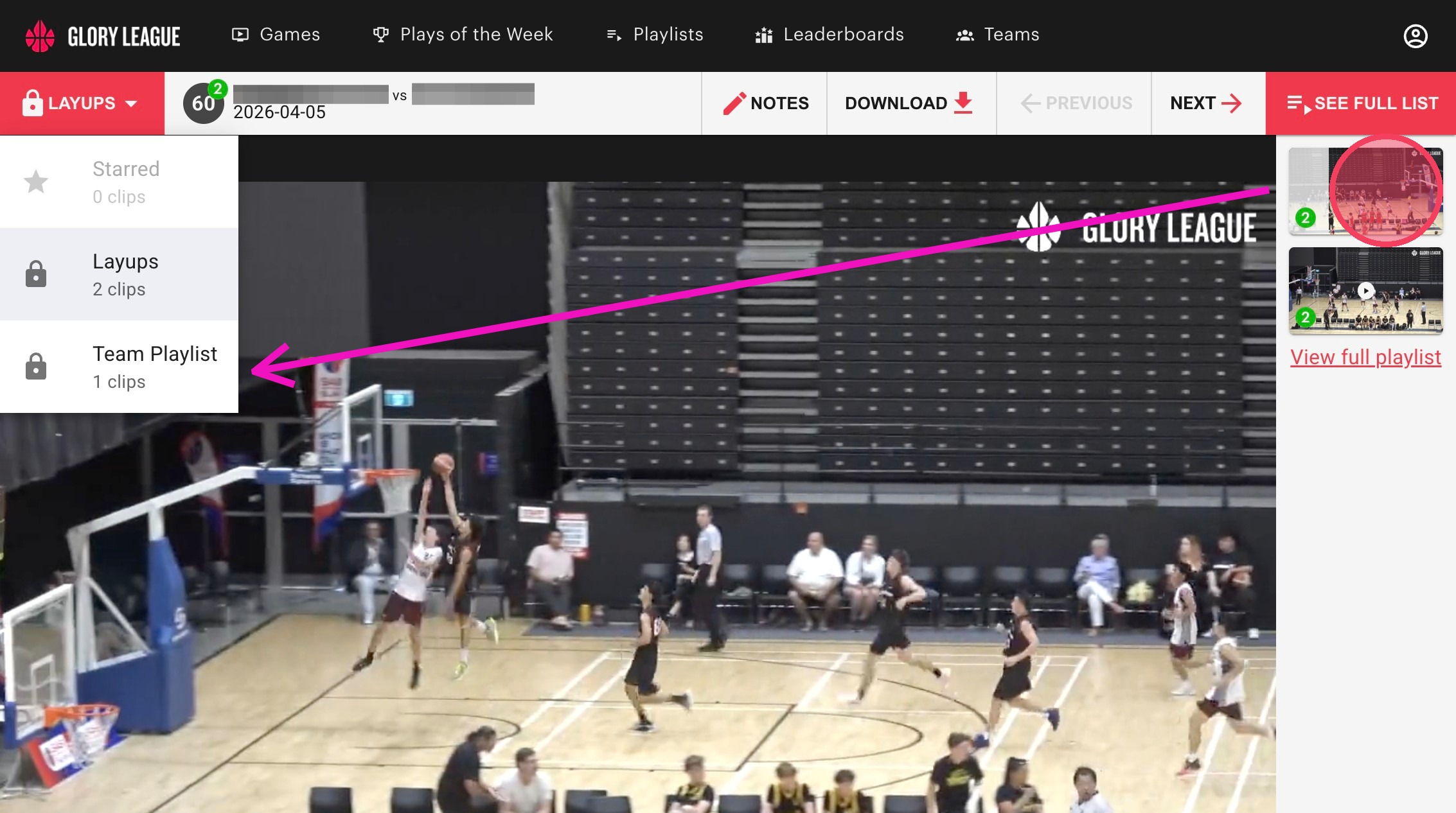
Click the dropdown menu on far left to switch to a different playlist or to move a clip from one playlist to another.
To move a clip, select the clip from the list on the right and drag it into the new playlist.
Arrange Clips
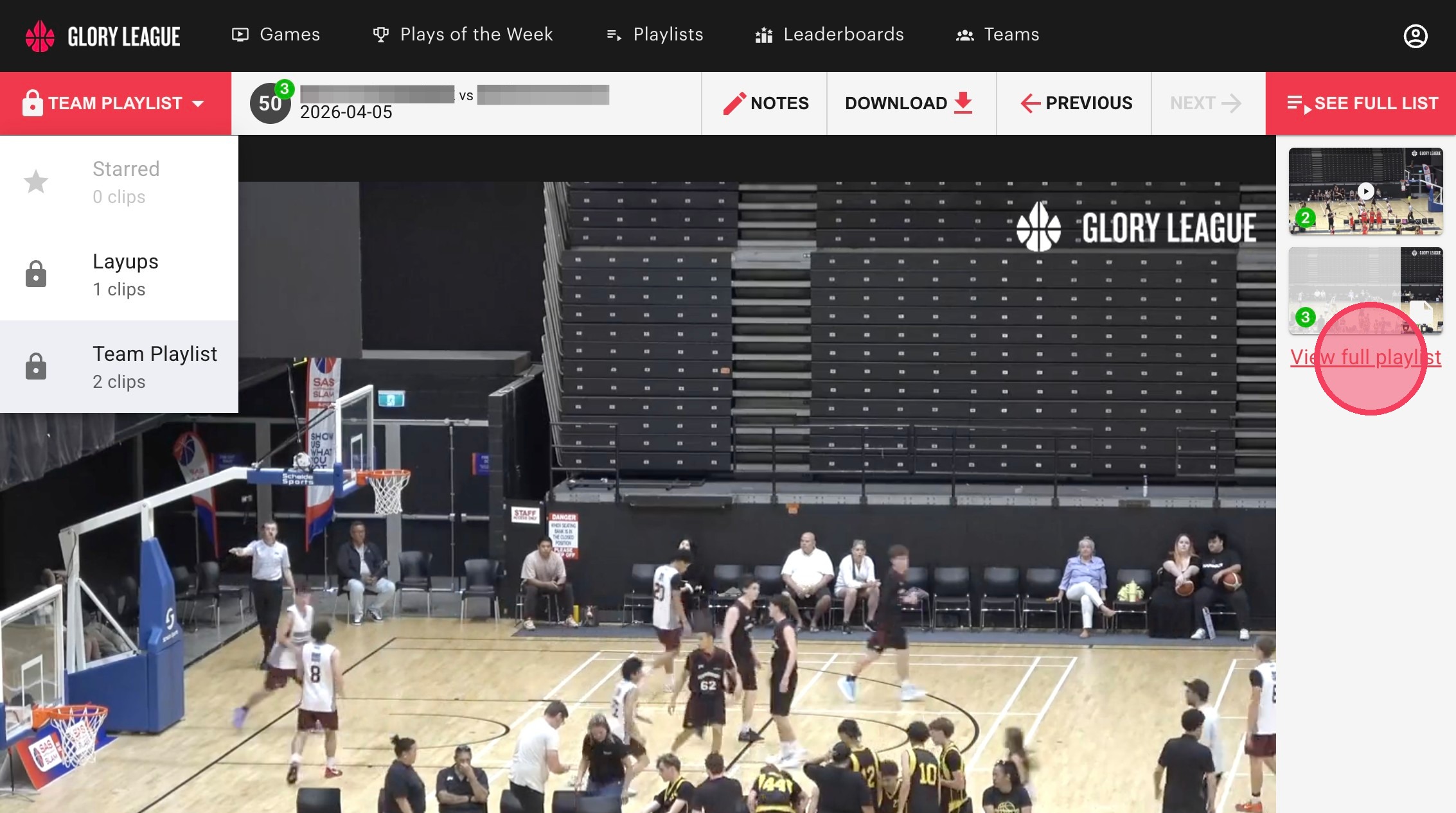
Click "View full playlist".
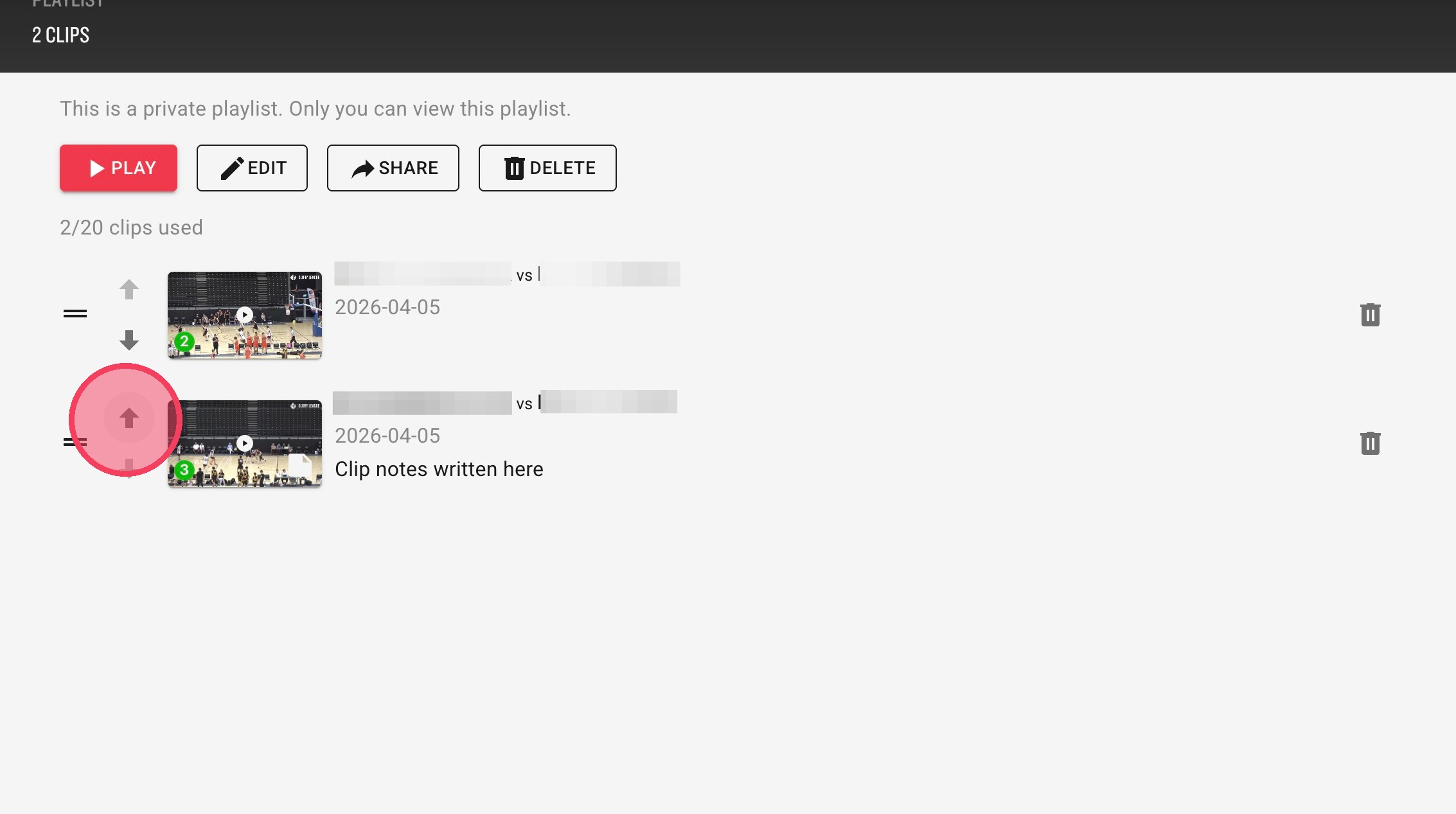
You can also re-order the clips in your playlist on this page by dragging them or by pressing the up/down arrows.
Share Playlist With Your Team
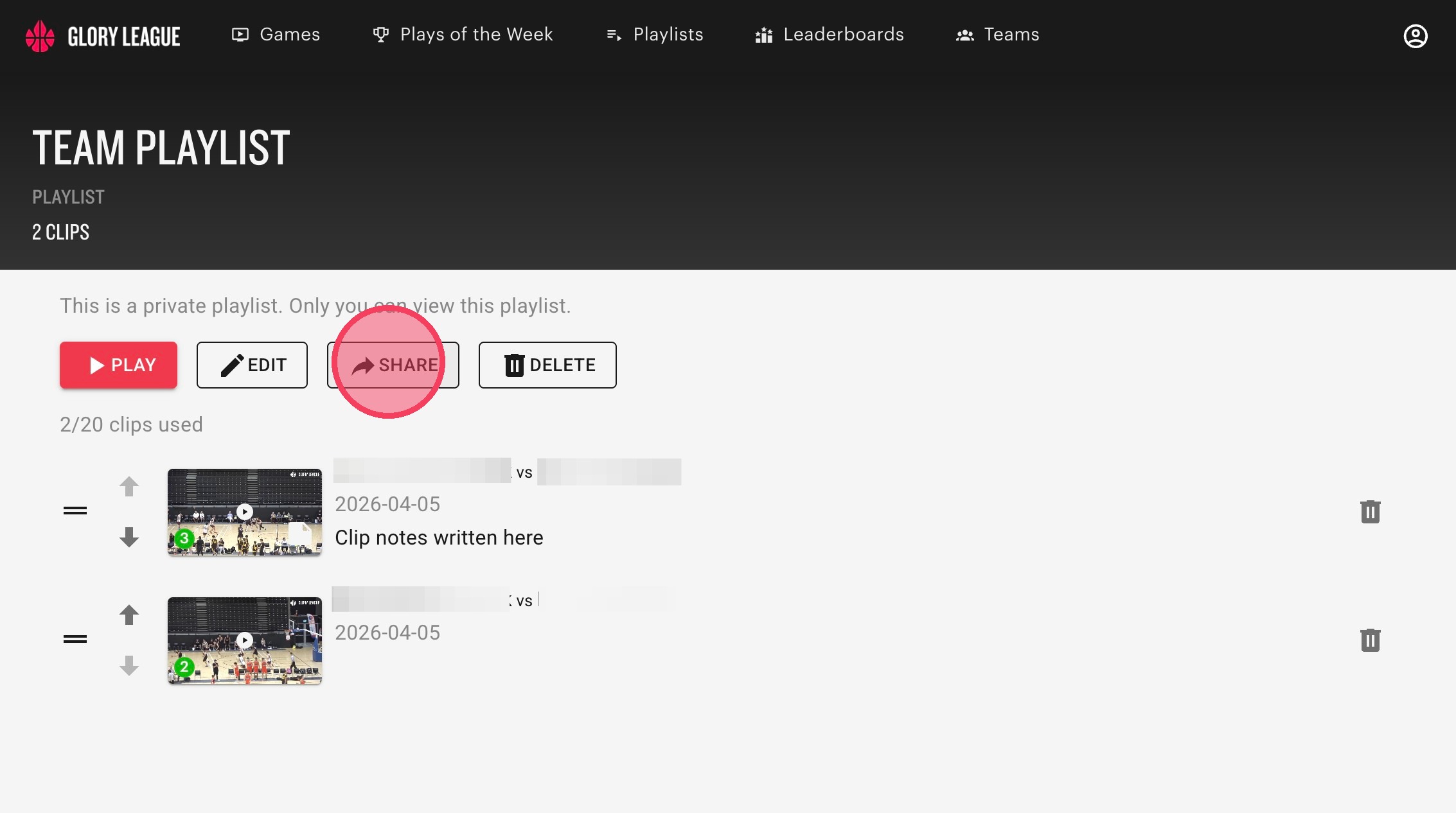
Click "Share".
Click "Make it public".
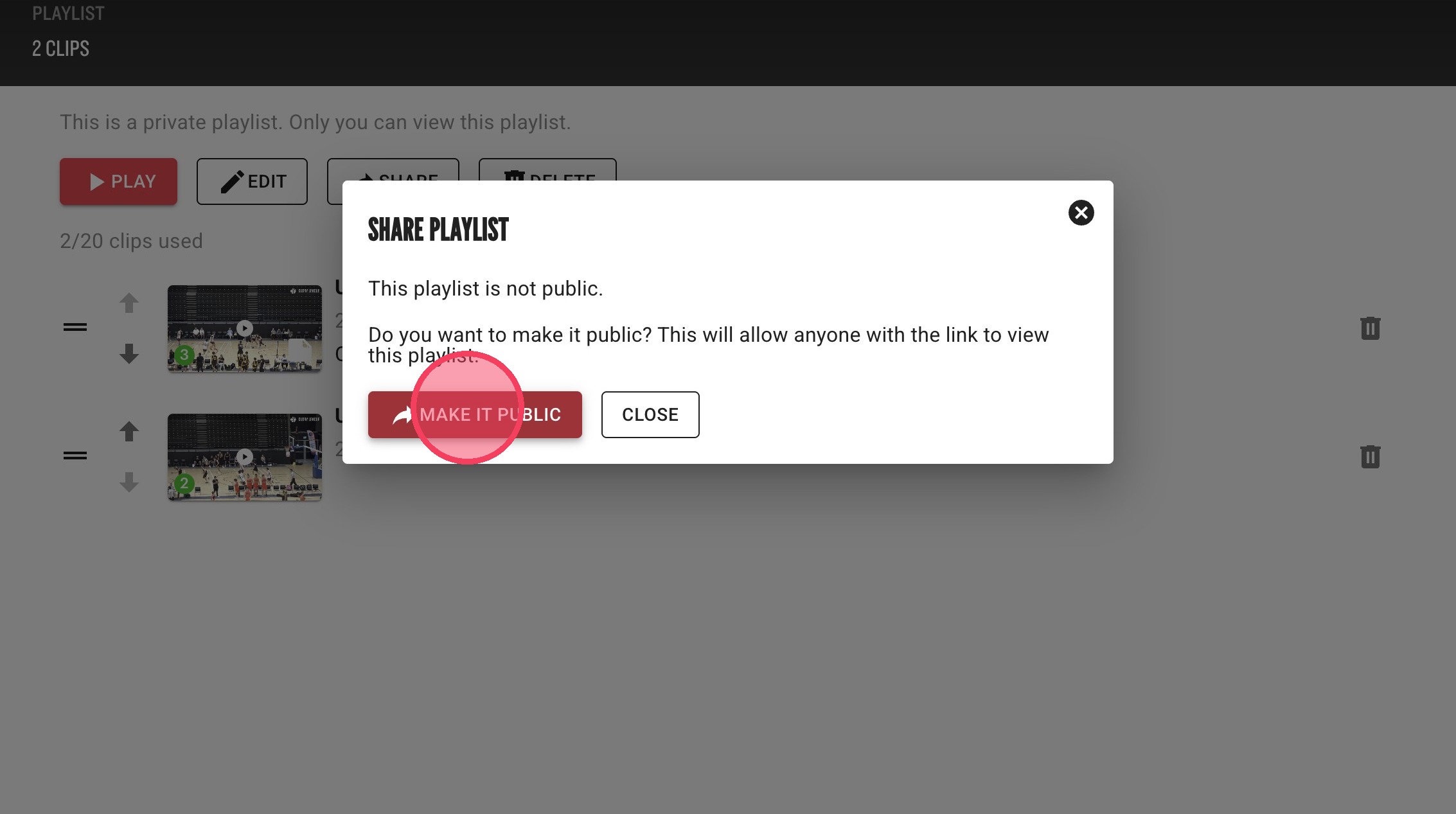
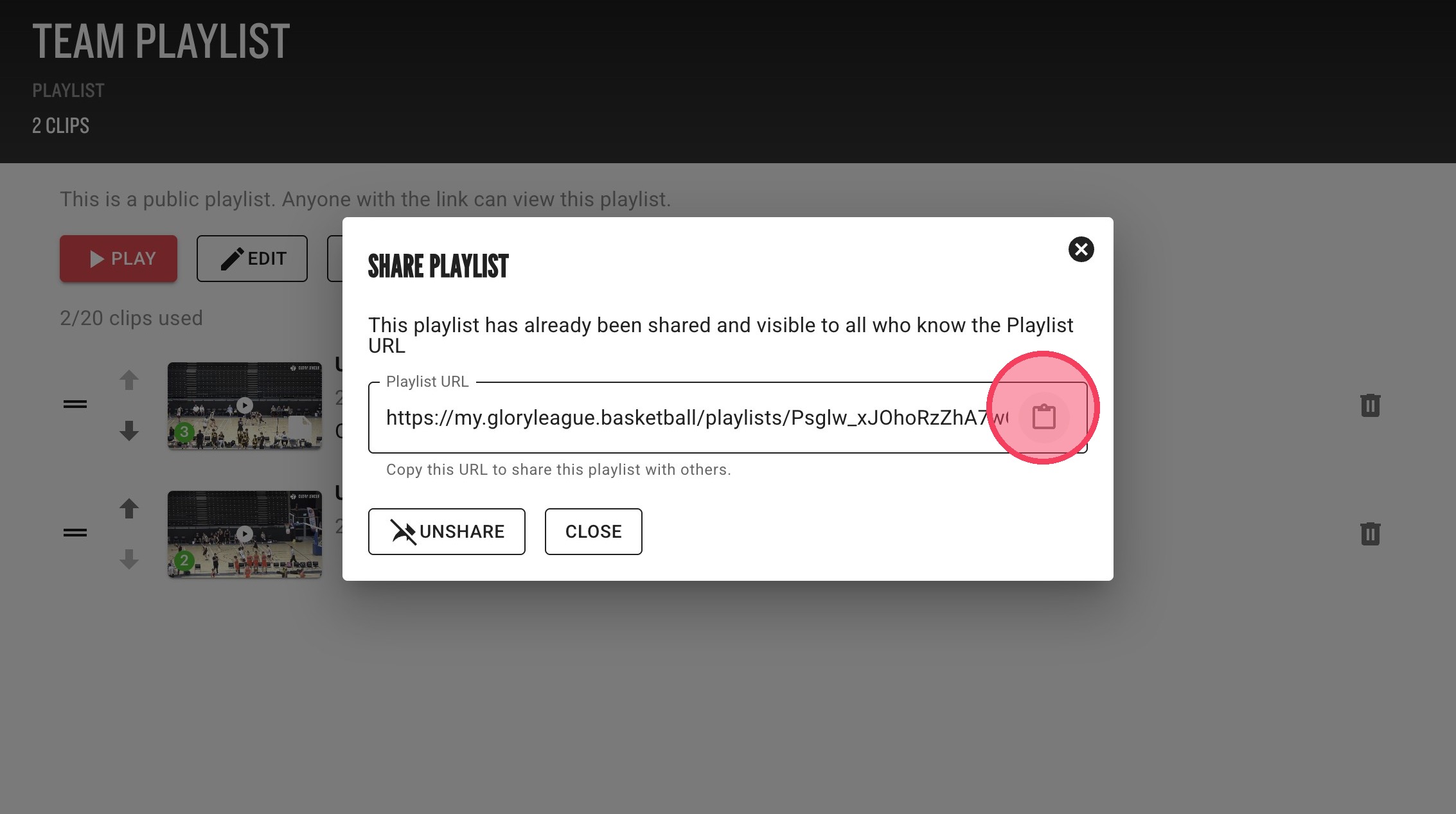
Copy the URL to the playlist and send the link to whoever you want to share it with. If you would like to unshare the playlist at anytime click unshare and the link will no longer be available to anyone that clicks on it.