How to Add Clips to a Playlist
To add a highlight from desktop there are two places you can do it from, the timeline bar or the side bar. This guide shows you how to add clips to a playlist and how to view them afterwards.
Add Clips from the Timeline
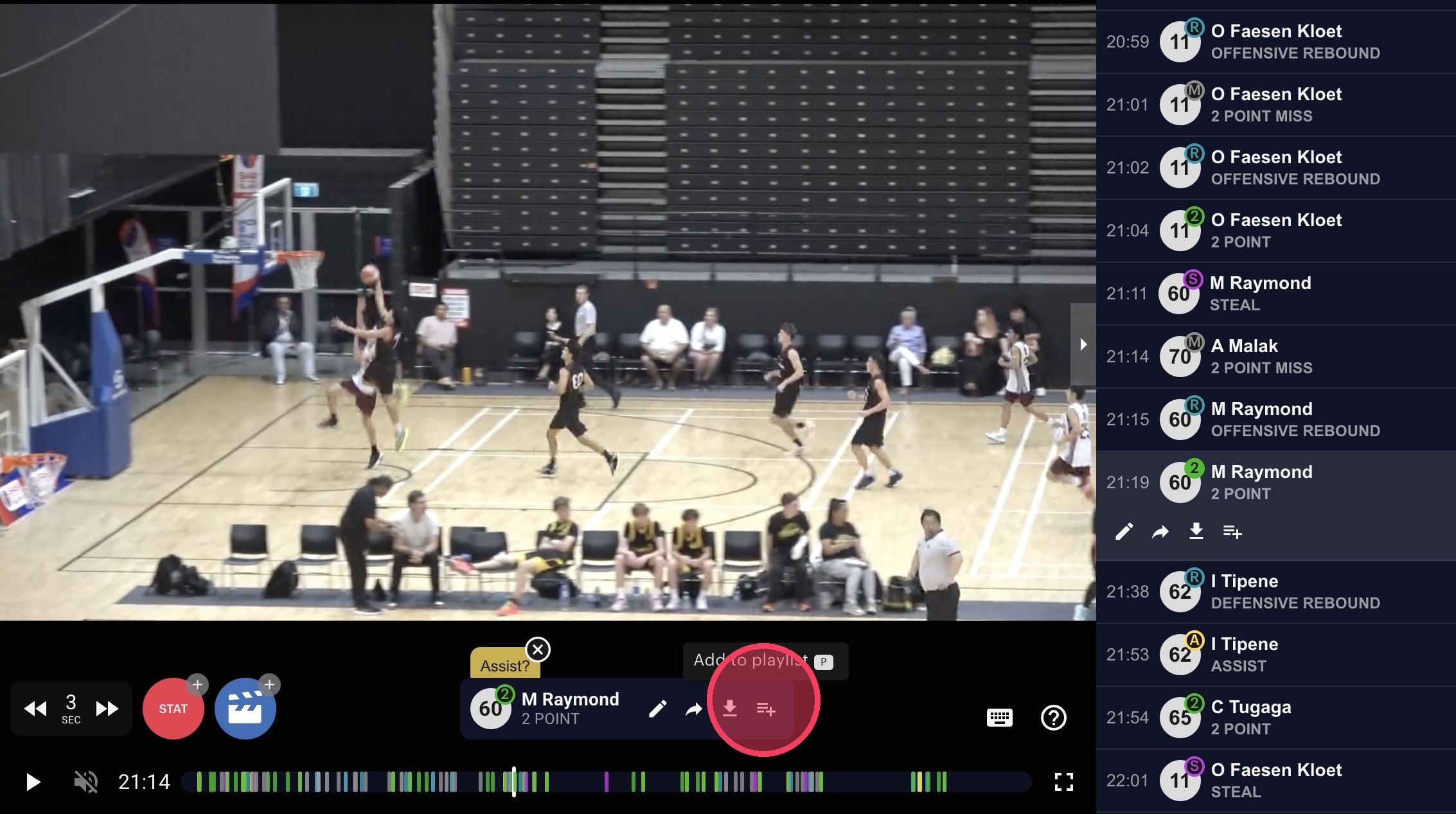
From the timeline: click on the highlight you want to add from the timeline bar and then click the "Add to playlist" button.
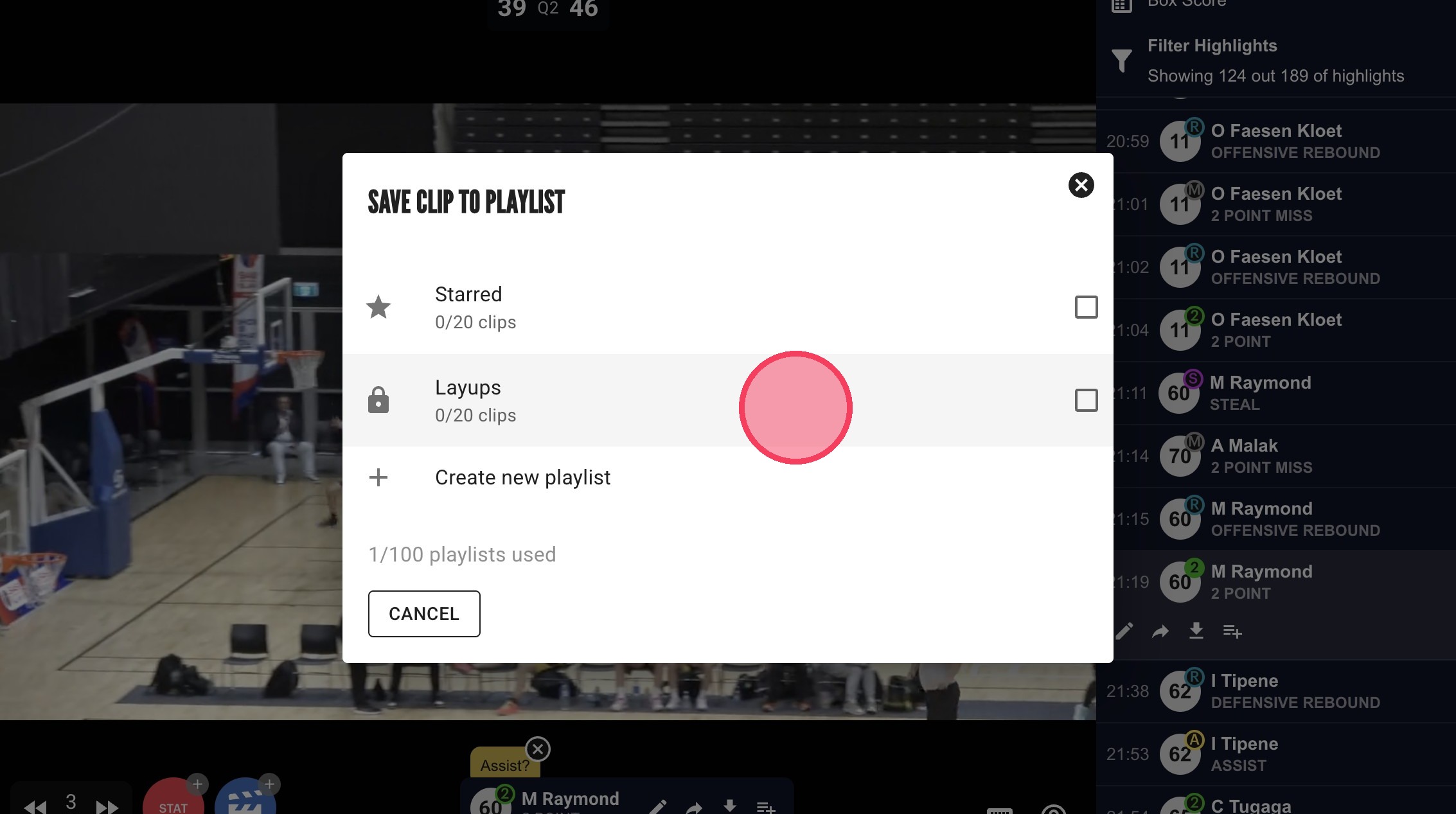
Select which playlist you'd like to add it to or create a new playlist.
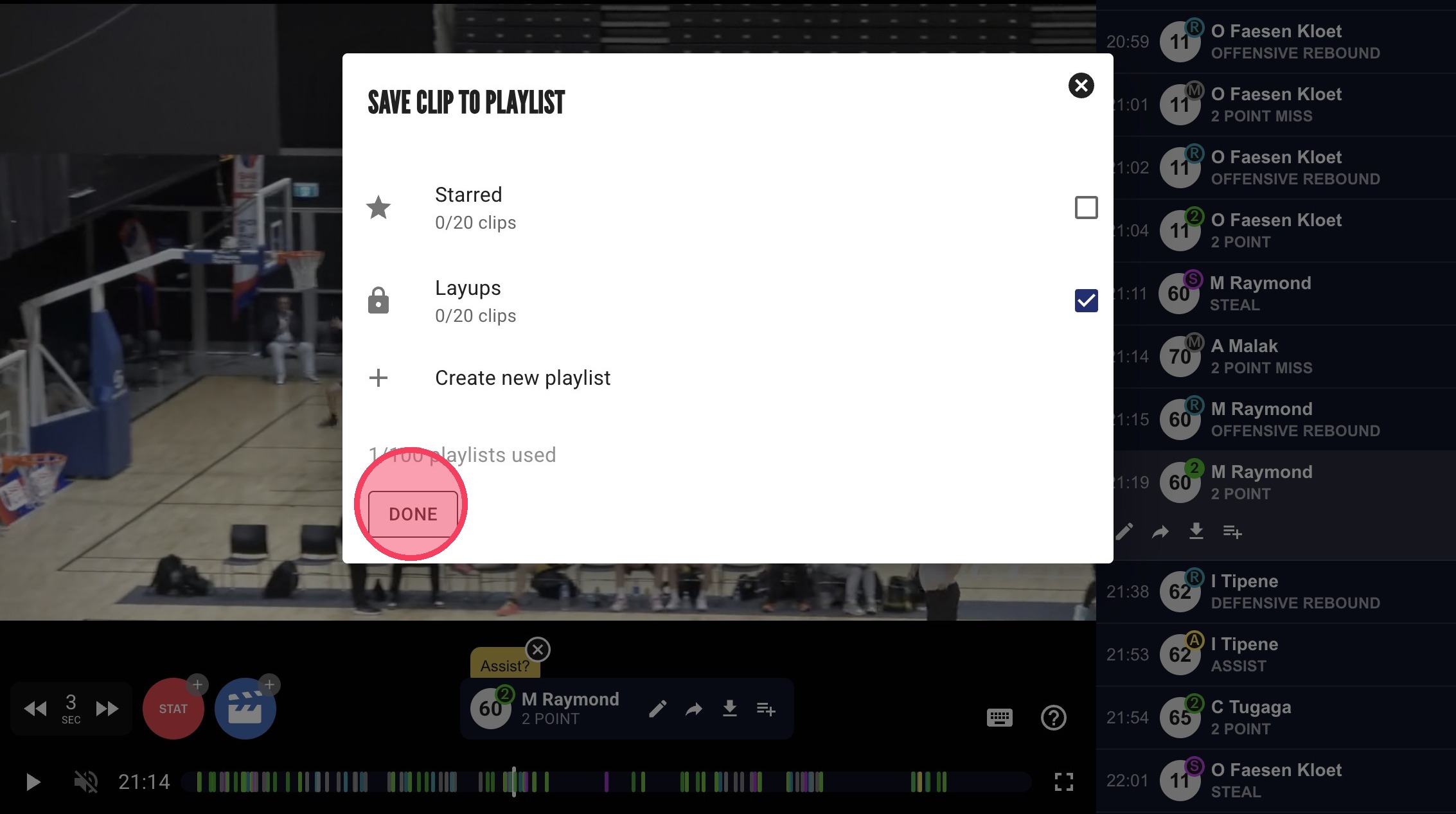
Click "Done".
Add Clips from the Sidebar
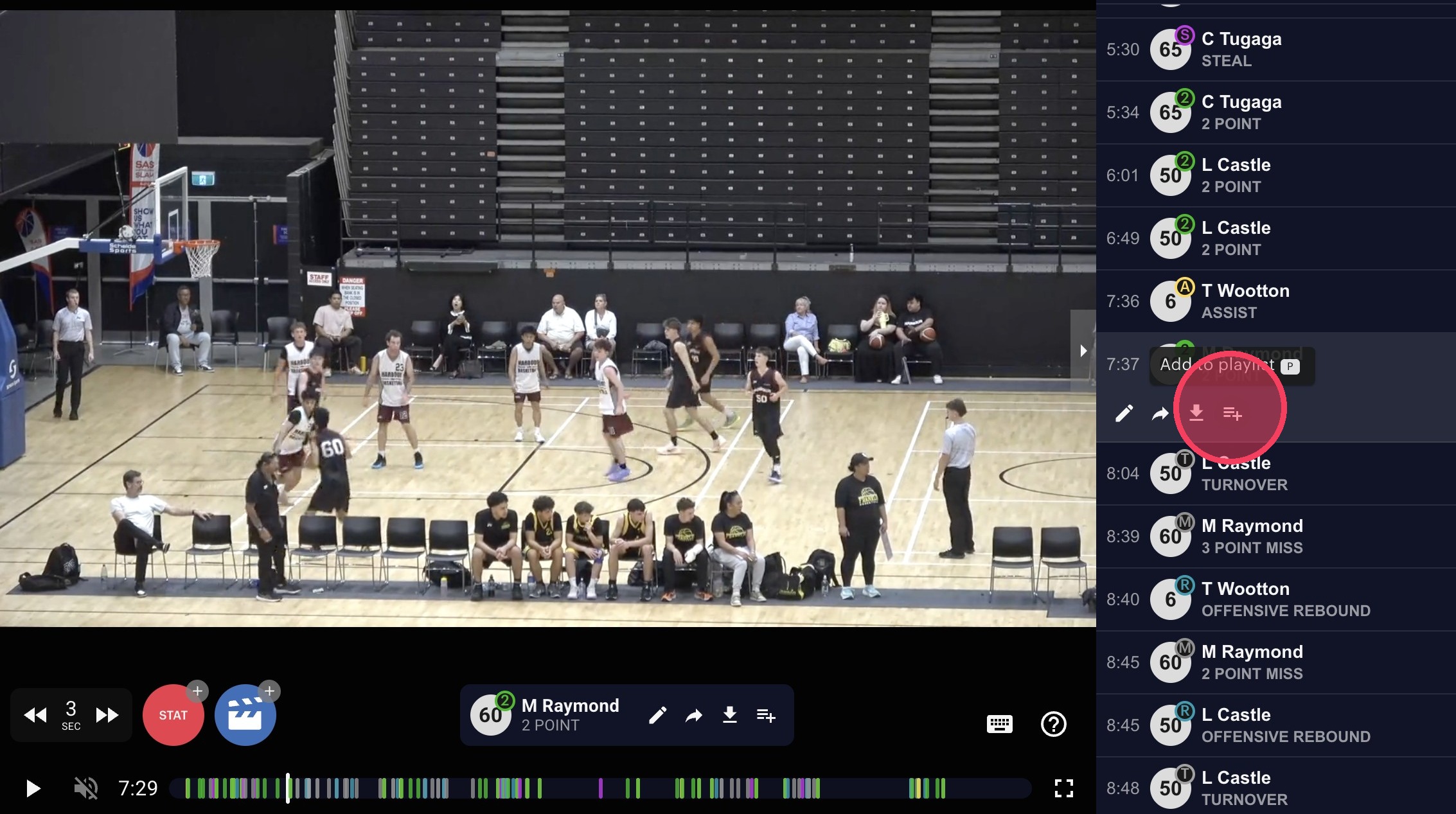
From the sidebar: find the clip you want and click on the "Add to playlist" button.
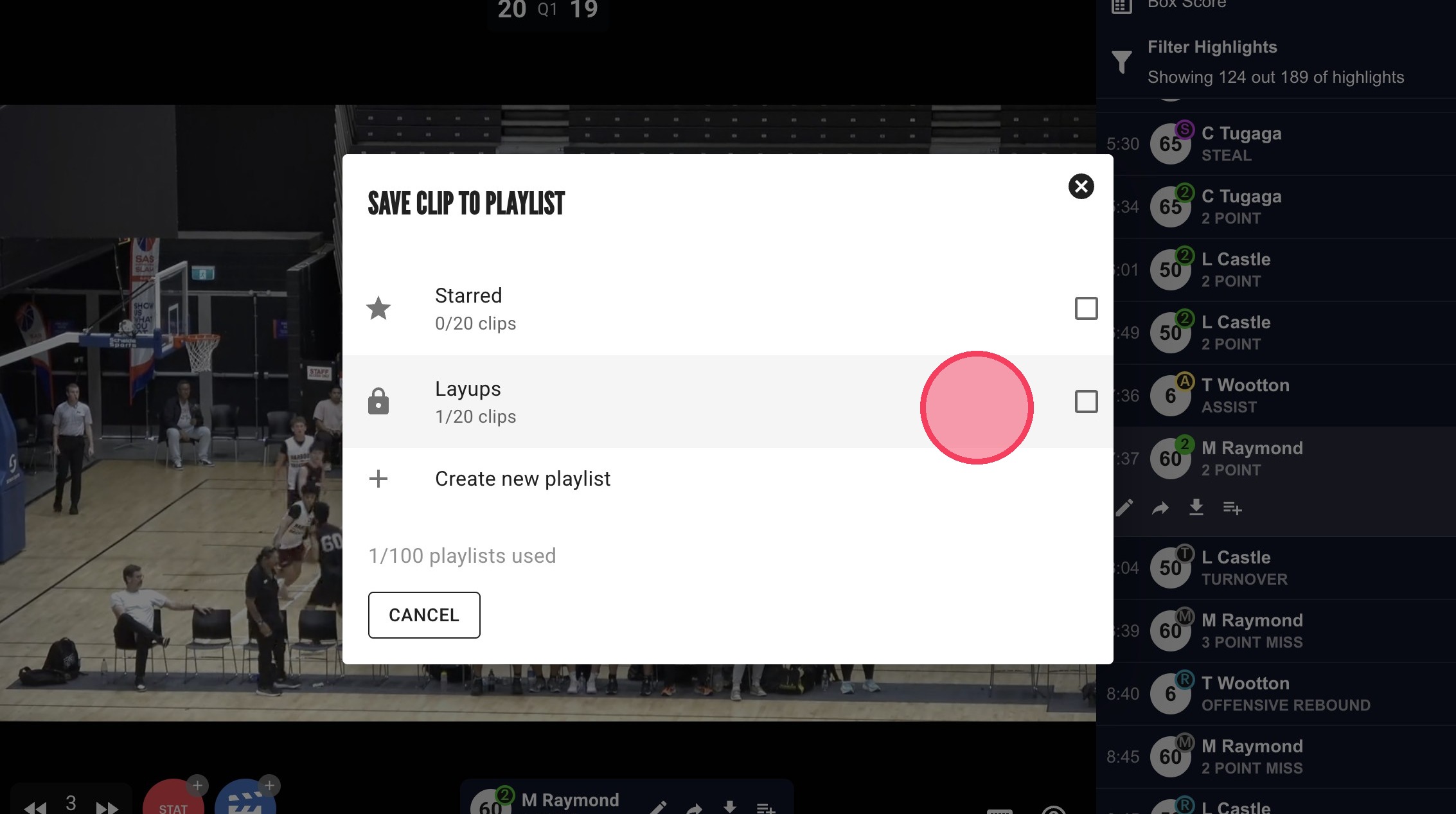
Again, choose which playlist you'd like to add the clip to.
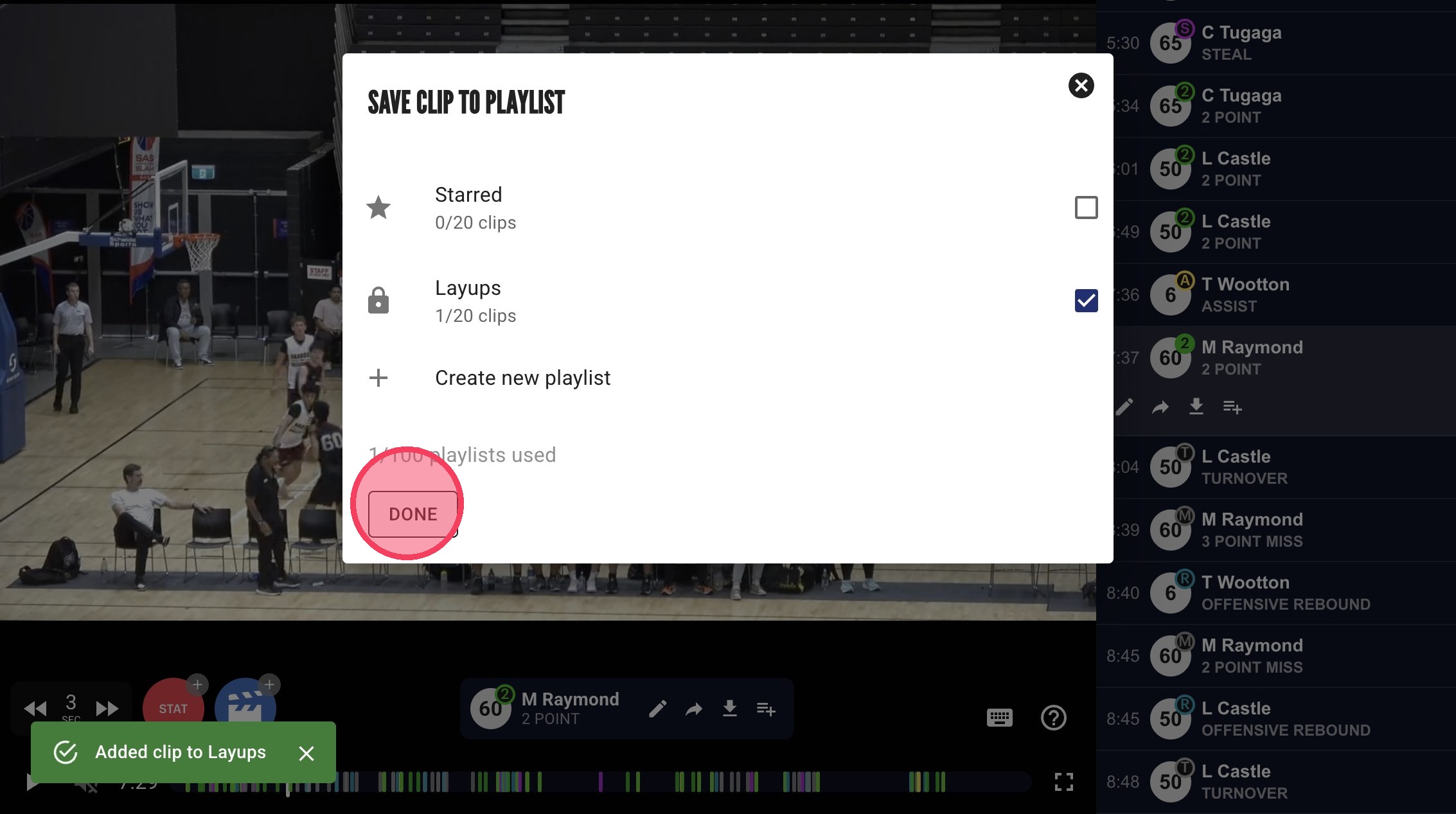
Click "Done".
View the Playlist
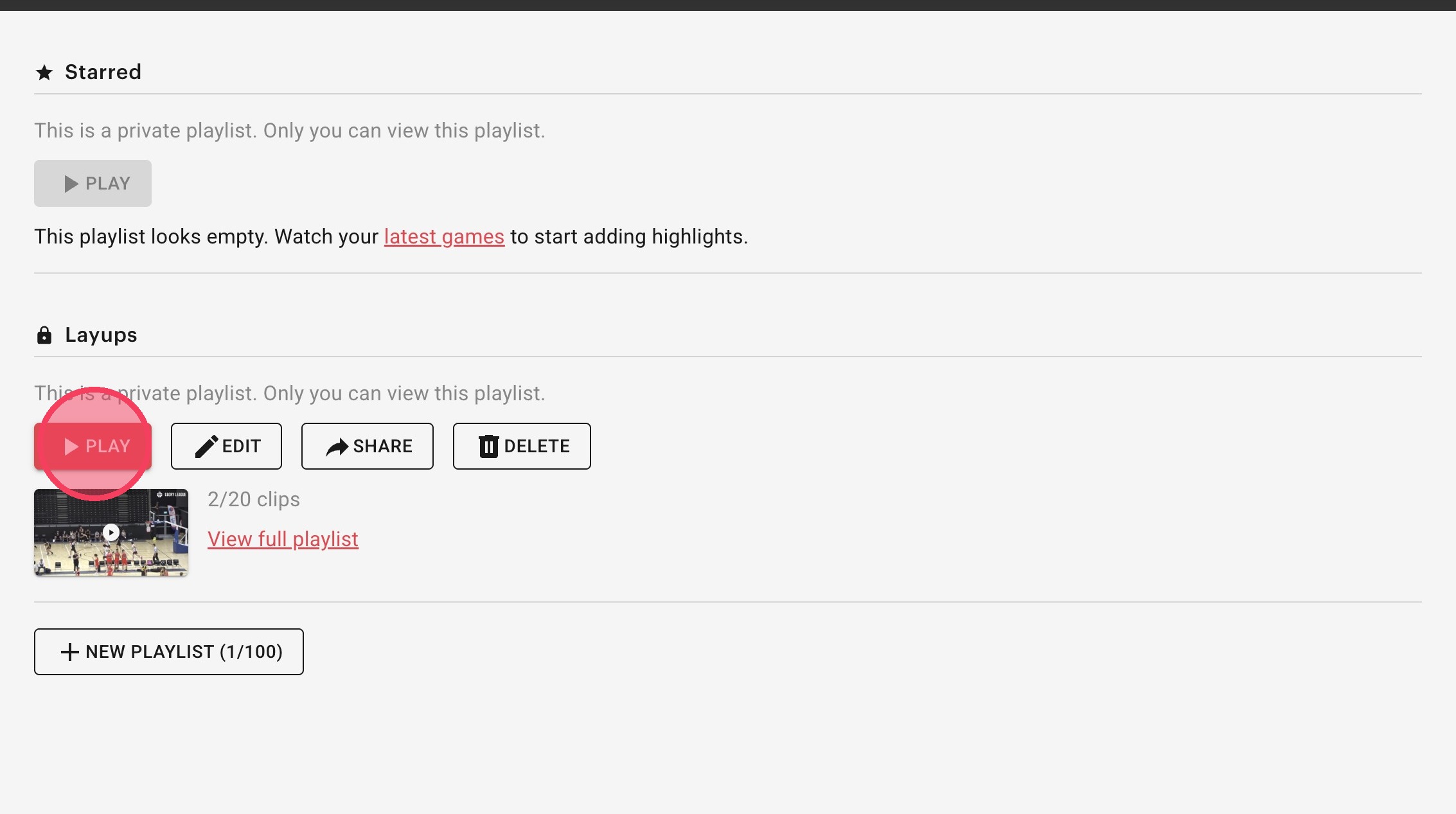
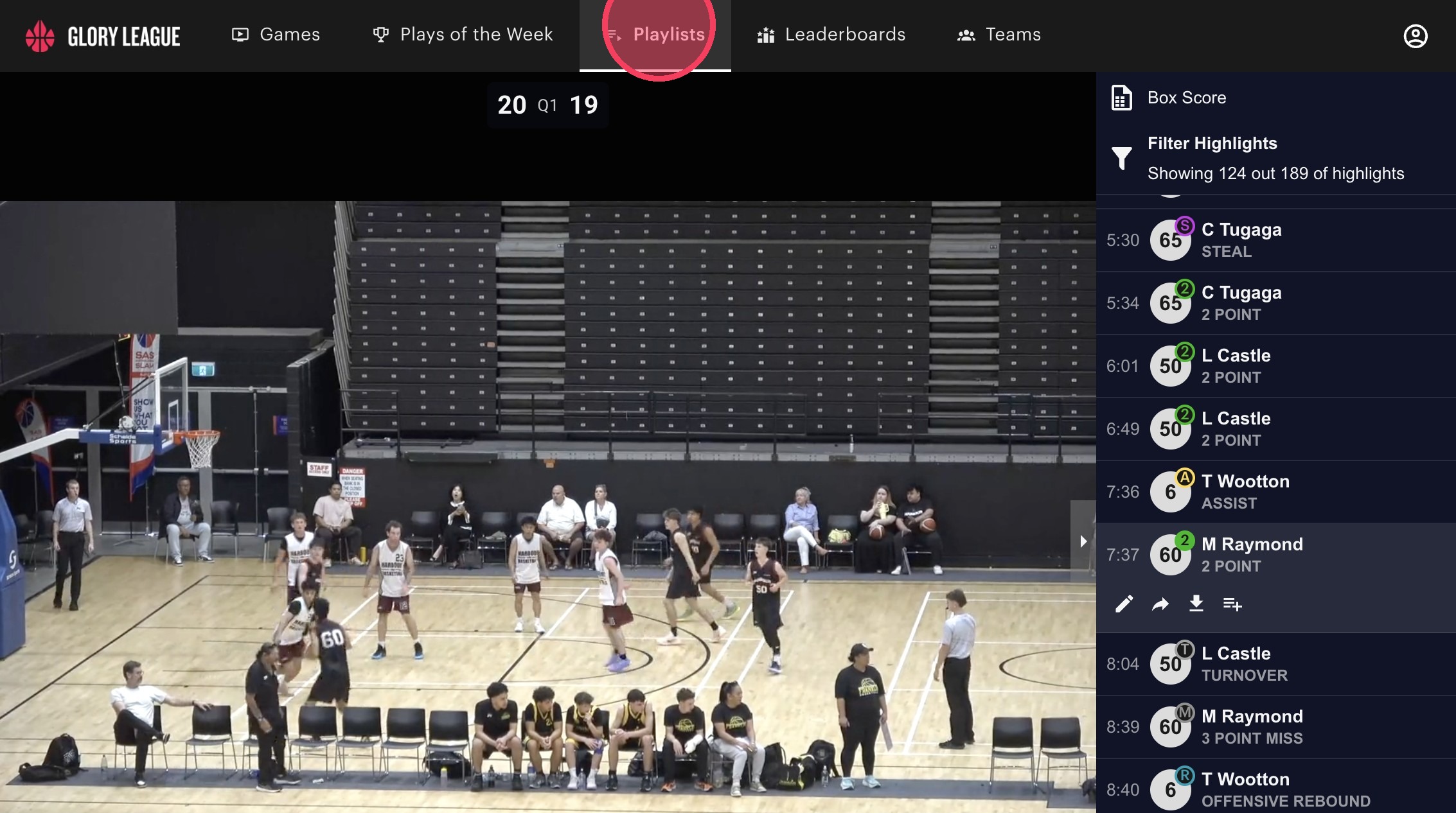
Once you've finished adding clips, you can click "Playlists" from the top menu to view your playlists.
Click "Play" to watch your playlist.